Before you start
- You need head office access to MedadvisorHQ with permission to manage vouchers. Contact your key account manager for access.
- Know which service the voucher covers, for example - Flu Vaccination
- Know how many codes you need and the dates vouchers should work and for which organisation
- Decide whether the program applies to all pharmacies in your group or a selected group.
Add a voucher program
Please follow these steps:
- Sign in to MedadvisorHQ
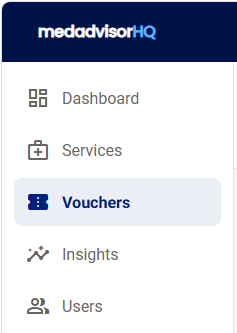
- Select Vouchers in the menu.
- Select Add program

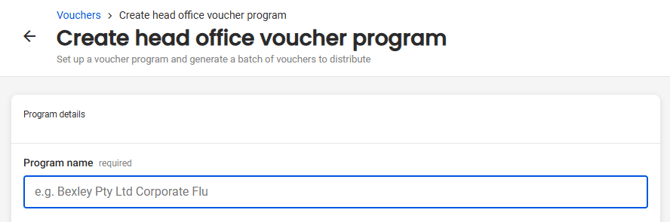
- Enter the Program name. Use something clear, like the company/organisation name and service e.g 'ABC Bank - Flu program 2027'
- Select the Organisation, which is sponsoring the program

Please note: if the organisation has not been added, select + Add organisation in settings. This will remove any details for the voucher program and take you to settings. see below steps in Add the organisation
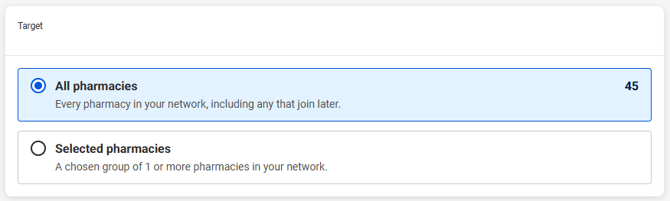
- Under Target, choose the pharmacies the program applies to: All pharmacies or Selected pharmacies
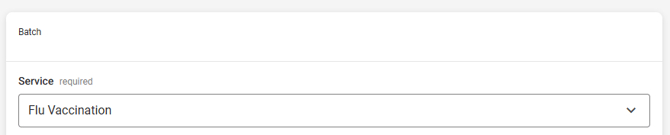
- Select the Service the voucher covers e.g Flu Vaccination
- Enter the Sub campaign/Reference (optional)

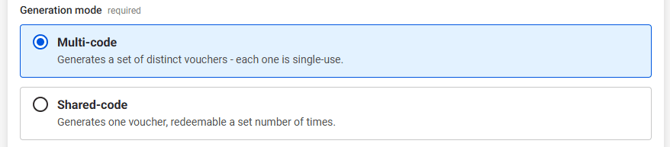
- Choose how codes are generated:
-
- Individual codes: one code per person - use this when the sponsor wants a list of codes to hand out
- Shared code: one code many people can use, up to the limit you set - use this when the sponsor wants one code to circulate
- Enter the Total quantity/limit: The numbber of codes (or the number of uses for a shared code)

Please note: Once all codes are used, no more vouchers can be redeemed
- Enter the Start date and Expiry date

- Tick I declare that these dates are correct

- Select Create program
-
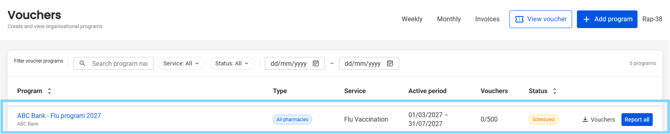
The program appears in the Vouchers list. Its status is Scheduled until the start date, then changes to Active.
-
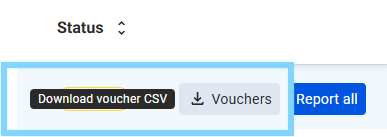
Select Download voucher CSV
Please note: Medadvisor does not send codes to patients or organisations.
Add the sponsoring Organisation first (if required)
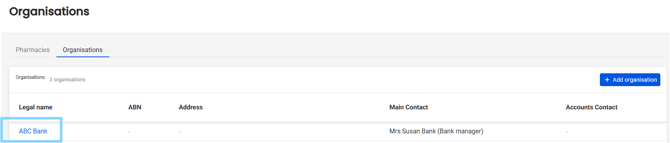
Each program is linked to an organisation, which holds the company's legal and trading names and contacts. If the company isn't in the list when you create a program, add it under the Organisations first in Settings.
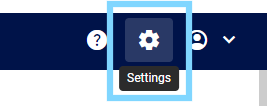
- Select Settings .
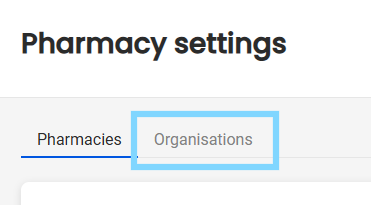
- Select the Organisations tab
-
Select + Add organisation

-
A pop-up will appear. Enter all required fields in Organisation details and Main Contact
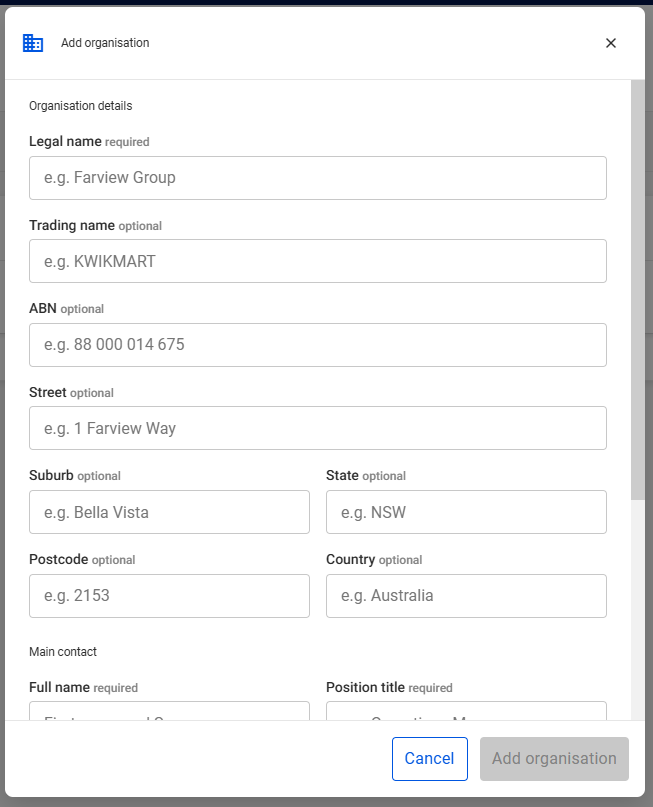
Please note: You can also add an optional Accounts contact as required
- Select Add organisation

-
The organisation will appear in the Organisations list. Select the organisations name to view the details and edit