
Please follow these steps:
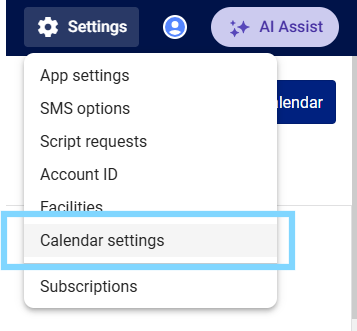
- Select the Settings icon and click Calendar settings
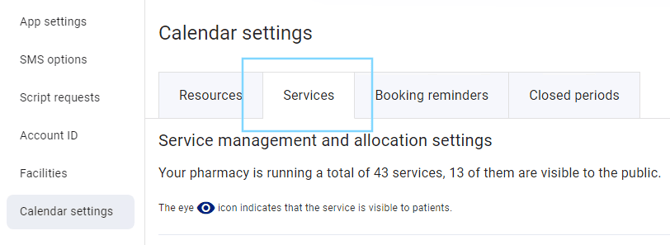
- Select the Services tab and select + Add a service
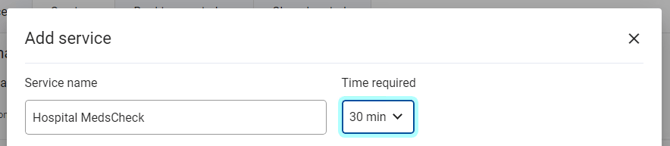
- The Add service pop-up will appear. Enter the Service name and select the Time required
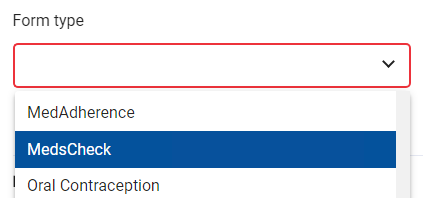
- Under Form type, select the service form you would like to link e.g MedsCheck
- Enter the Website description (optional)
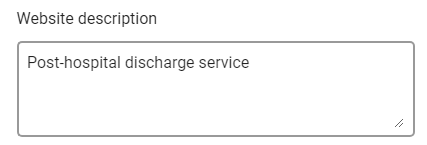
Please note: This description will be visible on your public booking page IF you make the service visible
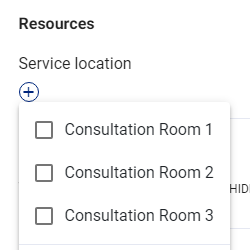
- Under Resources select the service location by selecting the + icon
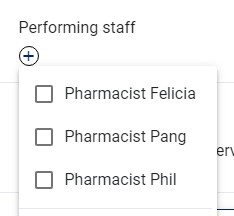
- Under Performing staff select the staff who can complete the service
- Select Create service
The booking type with the linked service form will appear in your public booking website