
Please follow these steps:
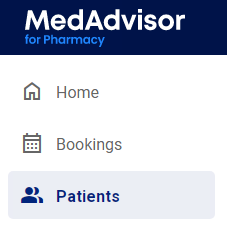
Please note: Do not use this form for immunisations. Use the applicable immunisation form.- Select Patients in the left-hand menu
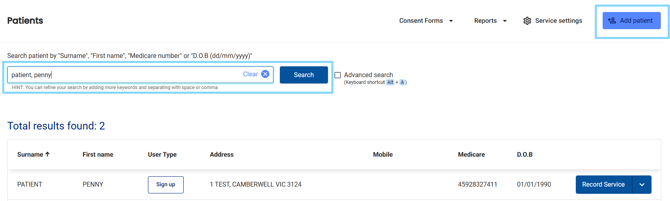
- Search for the patient by surname, first name, address, medicare number or date of birth OR select from the Recently dispensed customers list OR select Add patient to manually enter the patients details
- Next to the patient's details, select Record Service
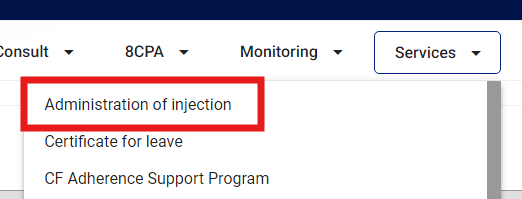
- View the Patient dashboard, including any patients notes, consultation history, medication list and more. Select the Services drop-down and select Administration of injection
- Under Patient Information, make sure all compulsory fields are filled out e.g DOB
- Under Consulting pharmacist details, today's date is pre-populated but can be changed. Select your profile from the Pharmacist drop-down

- Under Patient consent, select the tick box when the patient consents

- Answer the question under Pre-administration review
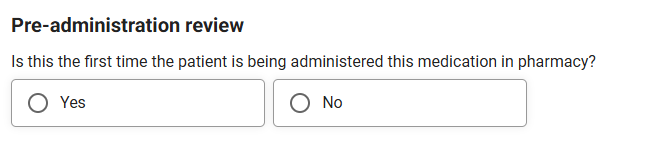
Please note: If 'No' is selected, review previous administers doses and fill out the details.
- Under Injection details select the drug from the Drug list

Please note: Medications from dispense will show in the drug selection.
-
- Under Other drug details, you may also manually enter the drug that you are administering the injection for. This is for drugs that are not listed in the above drug list and may have been dispensed at another pharmacy and brought in by the patient. Enter the drug name, for and strength

- Enter Injection time, Route of injection and Number of units administered

- Select Site of administration from the dropdown, enter Batch number and Expiry date (mm/yy). Enter Total dose administered (including mcg, mg and mL) and Next dose date (dd/mm/yyyy) as well as any comments
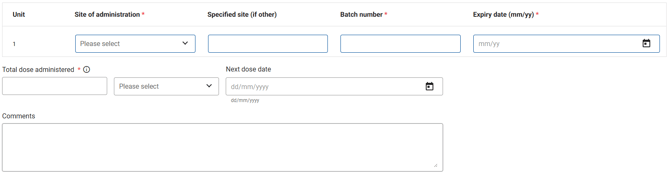
Please note: Click on the (i) for more information on Total dose administered and a link to the clinical guidelines.
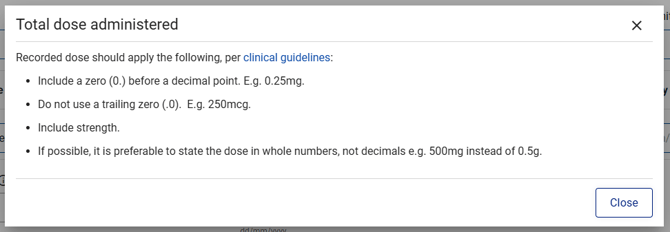 Please note: If milliliters (mL) is selected the following pop-up will appear and you must acknowledge that you will record reasoning in the comments section (see above). Select Acknowledge to proceed.
-
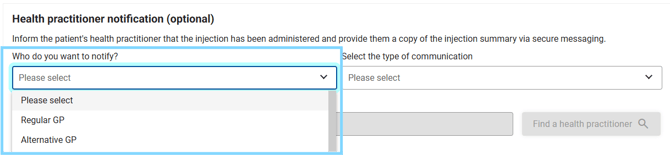
- Under Health practitioner notification (optional), select Who do you want to notify?
-
- Select the type of communication
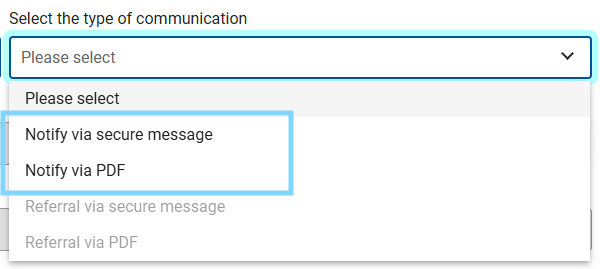
Please note: You can choose to notify via secure message or create a PDF
CLICK HERE for more on sending notifications via Secure Message
- Under Post-administration monitoring, select the check box if the patient remained in the pharmacy for the required observation period

Please note: There is also information for you to report any adverse events
- At the bottom of the form (and the top), you may select Delete, Save draft or Complete - as long as all compulsory fields have been entered.
