
To manually add a new patient booking for a pharmacy service, please follow these steps:
- In the menu of Medadvisor for Pharmacy, select Bookings
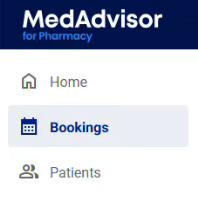
Please note: Booked services is pre-selected
- Select + New Booking in the top right-hand corner

- The Add a booking for a patient pop-up will appear
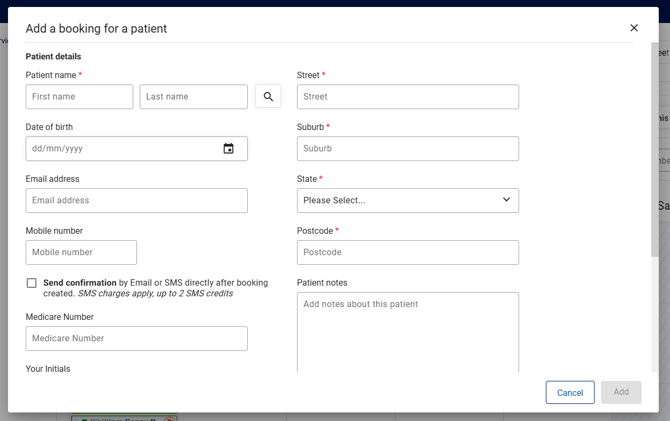
- Manually enter Patient details making sure to fill out all compulsory fields
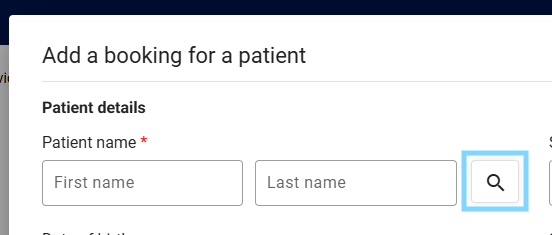
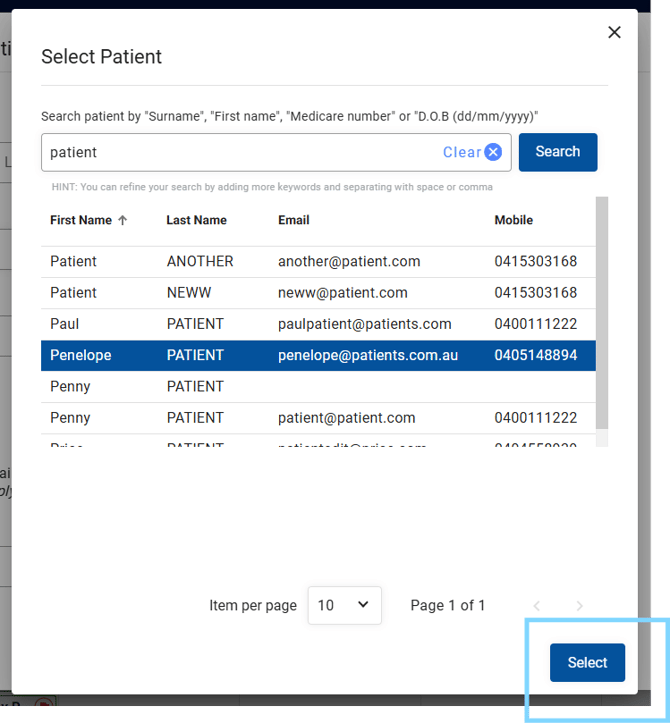
- Alternatively, select the 🔎 magnifying glass icon to search for the patient. Search their name, email or mobile OR select from the recent patient list.
- When you have located the correct patient, click on their details and click Select
- Scroll down to Booking details
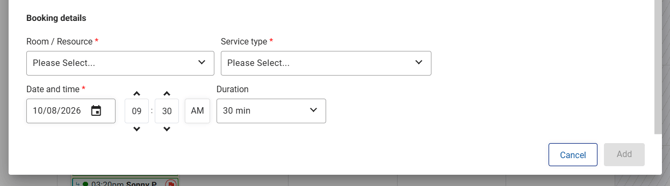
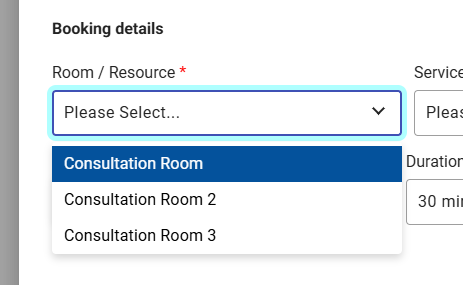
- Select the Room / Resource you would like to add the booking to
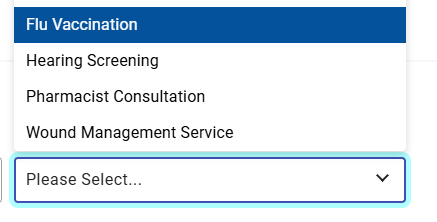
- Select the Service type
- Choose the Date and time and Duration of the booking

Please note: The availability of the select Room / Resource will appear under Check availability but can be overridden. Customers may book at selected time HOWEVER pharmacy staff can book an appointment at any time.
- Select Add
The booking will appear in the Bookings - Calendar section