
Please follow these steps:
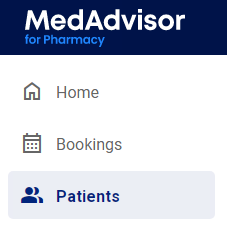
- In the menu, select Patients
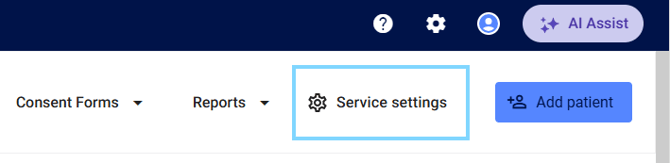
- Select Service Settings
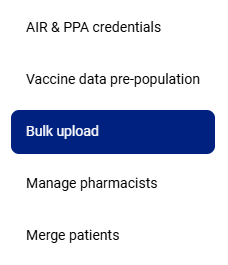
- Select Bulk upload
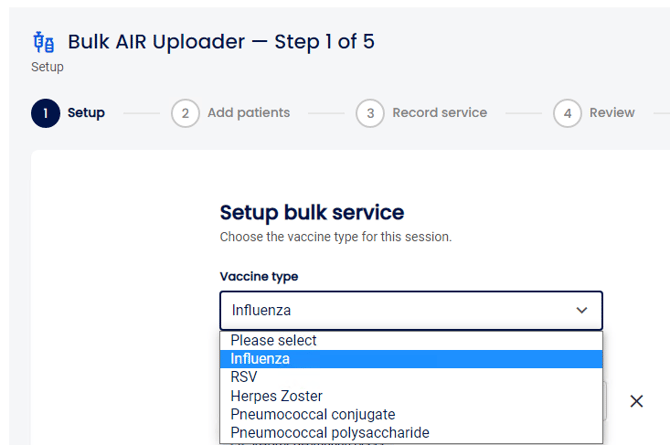
- Under Bulk AIR Uploader - Step 1 of 5 select Download empty template

We recommend to download the template and populate the fields which will be available to upload in Step 2. Add patients
Step 1 - Set up
- Select Vaccine type from the drop down
- Select Immuniser from your existing list of authorised pharmacists/immunisers
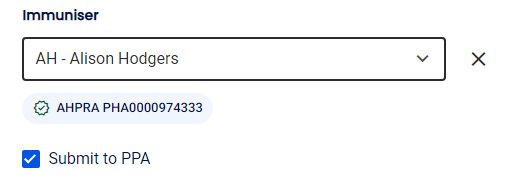
Please note: The pharmacist/immuniser must have an AHPRA number associated. Select Manage pharmacists in the sub-menu to add these details. Submit to PPA checkbox is pre-selected if you're claiming at the same time but can be unticked.
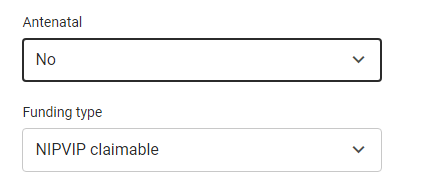
- Select if these bulk uploads are Antenatal - Yes or No and select Vaccine Funding Type
-
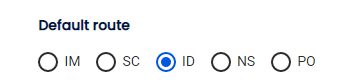
Select the default route of administation
|
Route
|
Description
|
|
IM
|
Intramuscular
|
|
SC
|
Subcutaneous
|
|
ID
|
Intradermal
|
|
NS
|
Nasal
|
|
PO
|
Oral
|
- Select the default brand, batch, expiry and default dose number
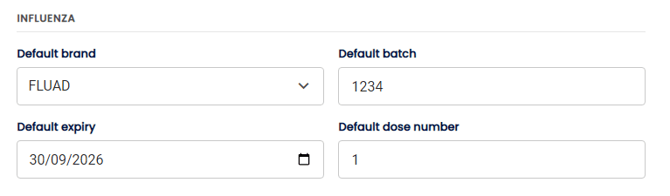
Please note: You will be able to select from the available vaccines based on the Vaccine type selection above
- Select Next

Step 2 - Add patients
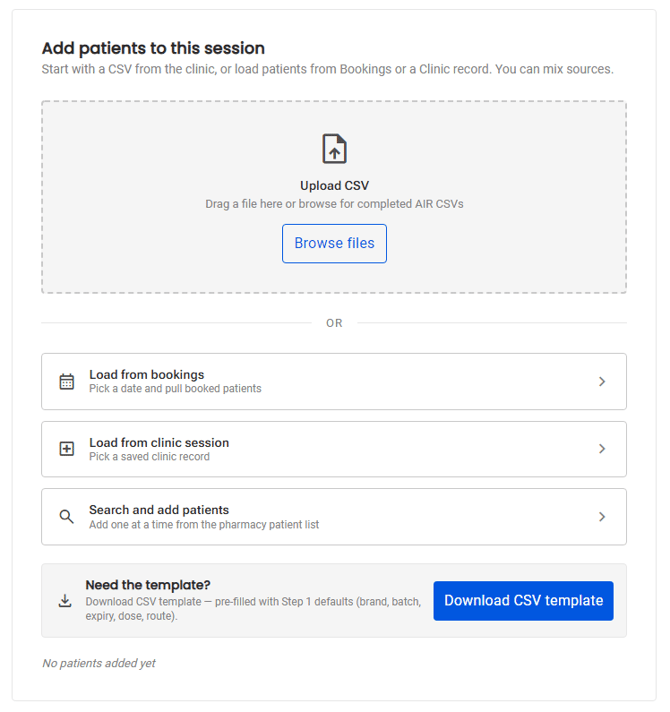
Upload a CSV, load from your bookings, load from a clinical session and/or search and add patients one at a time.
You can add from multiple sources.
-
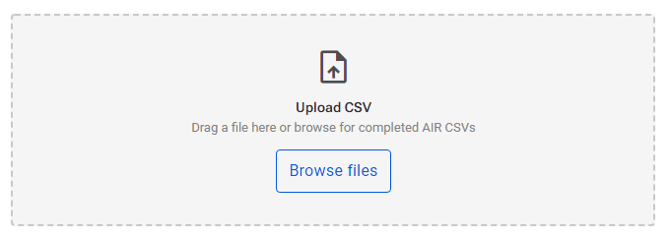
Select Browse files or click drag and drop the file to upload from the CSV template provided
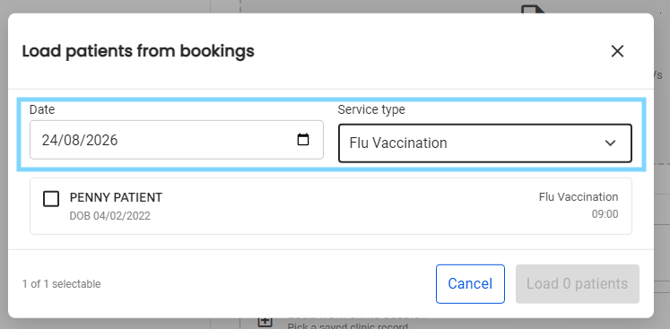
- Select Load from bookings to select patients from previously booked vaccination services

- Select the date and service type to show eligible patients to upload
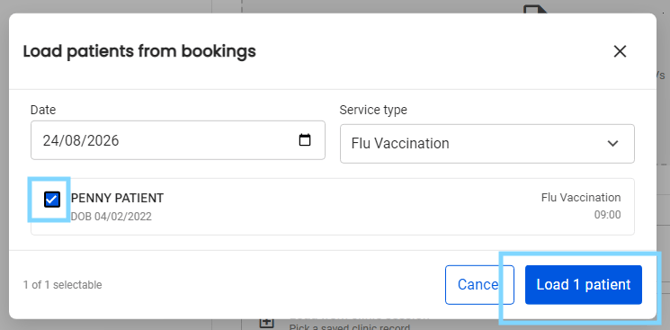
- Select the Patient/s and select Load patients
- Select Load from clinic session

- Select the clinic/s you would like to load patients from and select Load new patients
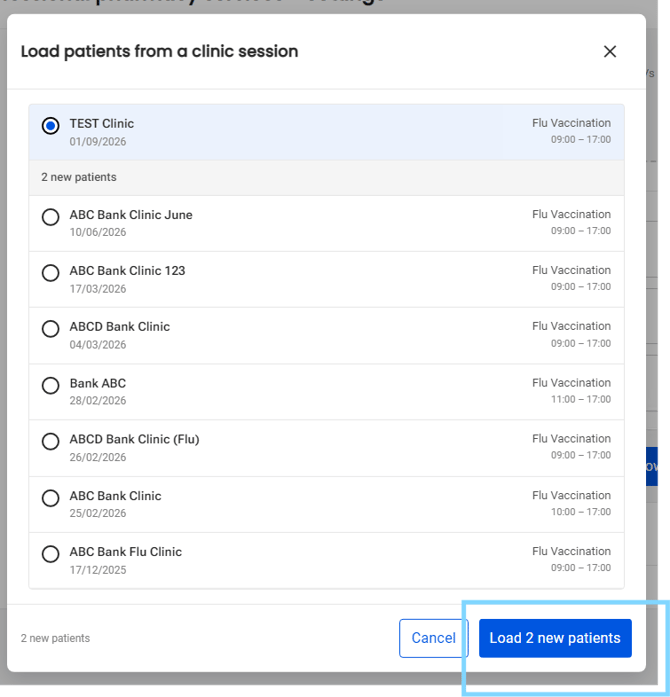
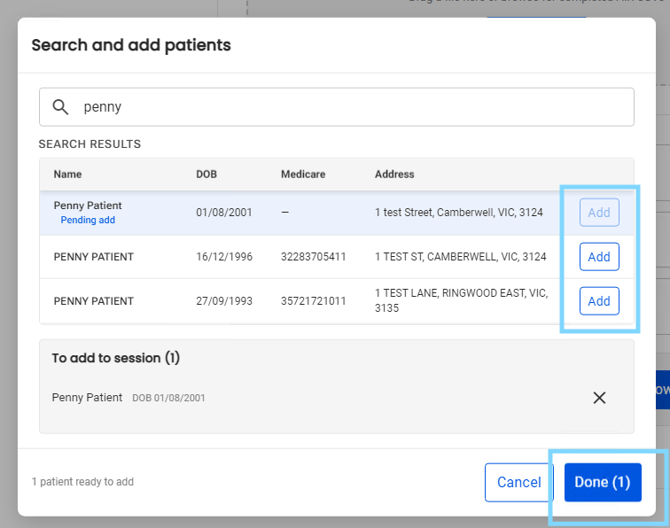
- Select Search and add patients to add patients from your Medadvisor for pharmacy database of patients e.g app and sms

- Search for the patient by Name, DOB or Medicare number and select Add and Done
Please note: The total patients selected will show at the bottom of the page.
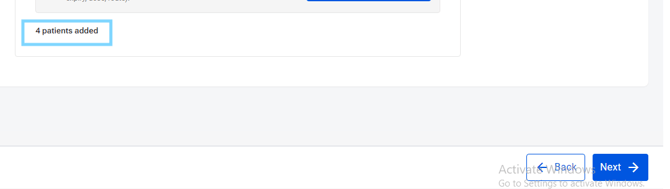
- Select Next
Step 3 - Record service
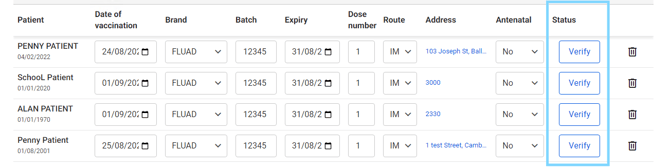
One row, per patient, is pre-filled from your defaults in Step 1. Edit anything that differs for an individual, use the toolbar to change a field across every row at once.
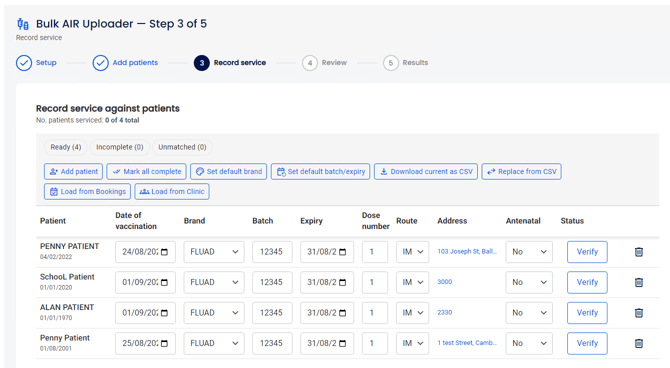
Please note: Anyone not yet in your system is flagged so you can find or create them
- Under Status, select Verify
- Select Next
Step 4 - Review
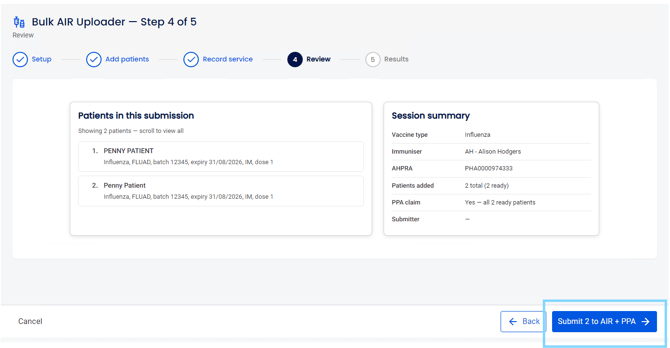
A final summary of who's being submitted and under what details. Anyone still unmatched shows as skipped and wont be sent, so you can go back and fix them, as required.
- After reviewing, select Submit to AIR + PPA
Step 5 - Results
Each patient reports back individually as AIR and PPA respond, so one failure never blocks the rest of the batch. Download a session log for your records when it's complete.