
- PREM: the patient's experience of the service.
- PROM: the patient's reported health outcome.
How results are rated
- Every answer receives one of six levels (marked red, amber and green) from highest to lowest concern.
🔴 Priority
🔴 Clinical
🔴 Service
🟠 Elevated concern
🟠 Moderate concern
🟢 No concerns
🔘 Not classified
- Each rated answer comes with a reason and a recommended response/action e.g Pharmacist trigger to review.
- Some answers are rated in combination. A Combined Review flag appears when the PREM and PROM answers together call for review.
Review consultations
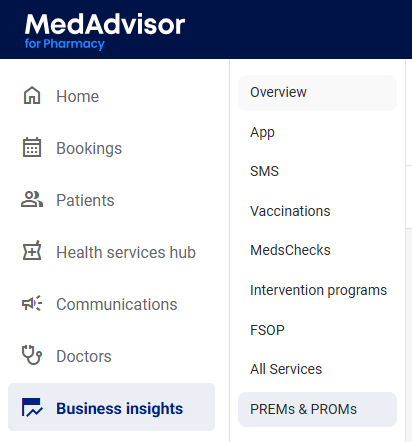
- In the menu of Medadvisor for Pharmacy, select Business Insights and PREMs & PROMs
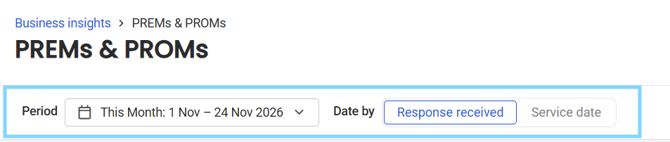
- Filter by period/date range and/or Response received or Service date
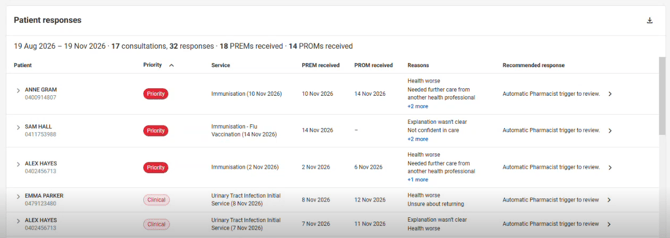
- Additionally, filter by priority, service and/or patient name

Please note: All levels are shown by default. A "–" means the patient hasn't returned that survey yet.
- Browse the consultation list. Each row shows the patient, the consultation and its overall priority level (shown as a priority chip).
Open a consultation to see the detail
- Select a row to expand it.

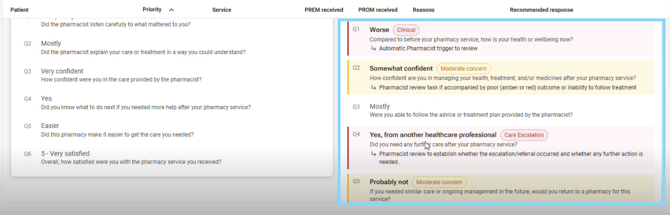
- Check the PREM and PROM answers, each shown with its own QSPP level.
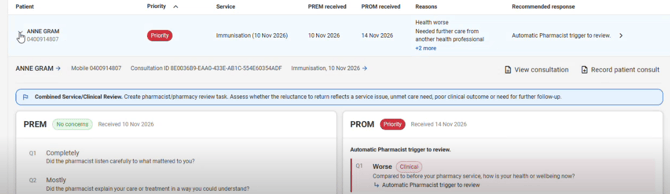
- Read the answer/s received, reason and recommended response for each flagged answer.
-
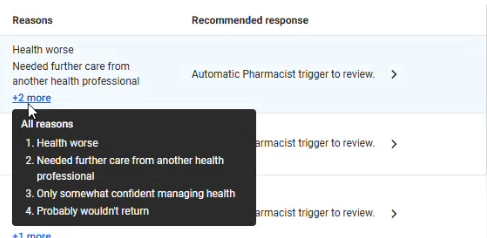
Hover over the reasons to see All reasons. The consultation's level is the highest priority of its answers, so check the individual answers and don't rely on the row summary alone.
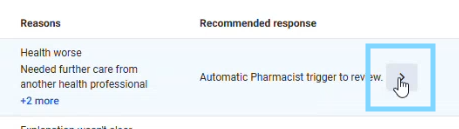
- Select the arrow > next to the Recommended response to launch the pop-up and record actions (see below for more)
- Select View consultation to view the service the responses are related to

Act on a flagged consultation
- Find consultations at the higher levels.
- Follow the recommended action shown for the answer.
Note: Some flagged items are service concerns and some are clinical. Take the action that matches the type shown.
Record Actions on the Patient Consult Module
- Where required, select Record patient consult to launch the Patient Consult Module and record the actions taken following up with the patient and record the outcome

- A pop-up will appear with an overview. Select Open Patient record to launch the Patient dashboard and launch Patient consult module
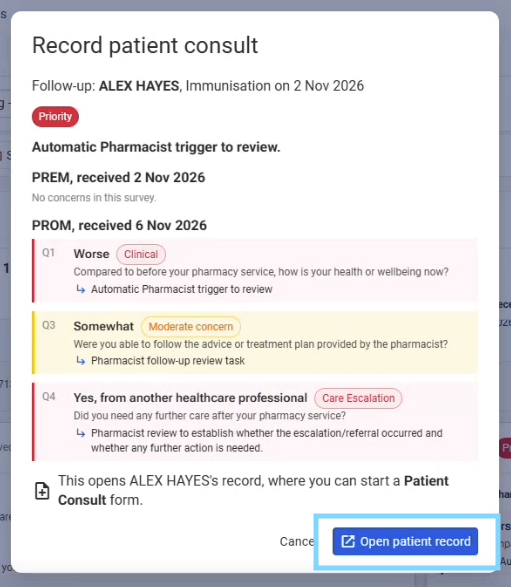
Please note: The pop-up summarises red and amber priorities only