
The Pharmacist Consultation FSOP form should be used for acute services and/or continued dispensing and therapeutic adaptation or substitution.
To record Chronic Condition Management, follow these steps:
- Launch MedAdvisor for Pharmacy or log into the web version. CLICK HERE for how to access the web platform
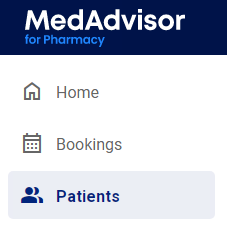
- In the menu, select Patients
- Search for a patient and select Search OR select a patient from Bookings OR select from the Recently dispensed customers list
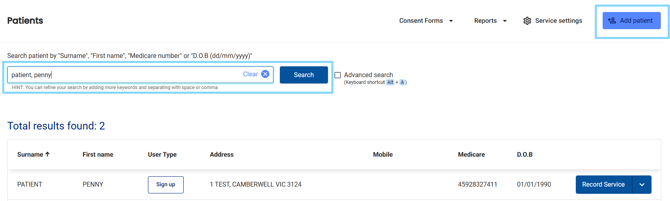
- If the patient is NOT in your dispense system, click Add patient in the top right-hand corner.
- Enter all compulsory fields and select Save patient
- Select Record Service

- Review Patient information and Patient notes.
- Review the RECENT SERVICES

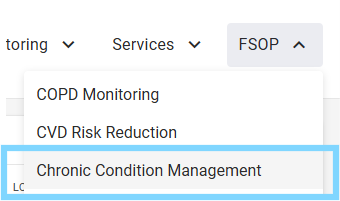
- Select the FSOP dropdown in the top right-hand corner and choose Chronic Condition Management
Patient Eligibility
A consulting pharmacist MUST be selected to mark a patient as ineligible
- At the top of the form, you may select Mark patient ineligible if the patient is not eligible for the service.
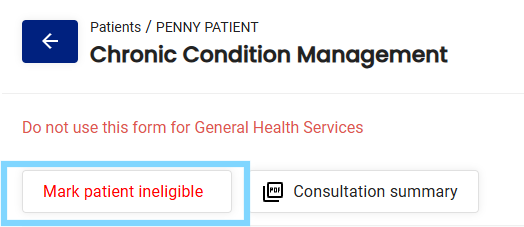
- A pop-up will appear. Clinical service type is preselected as 'Chronic Condition Management'
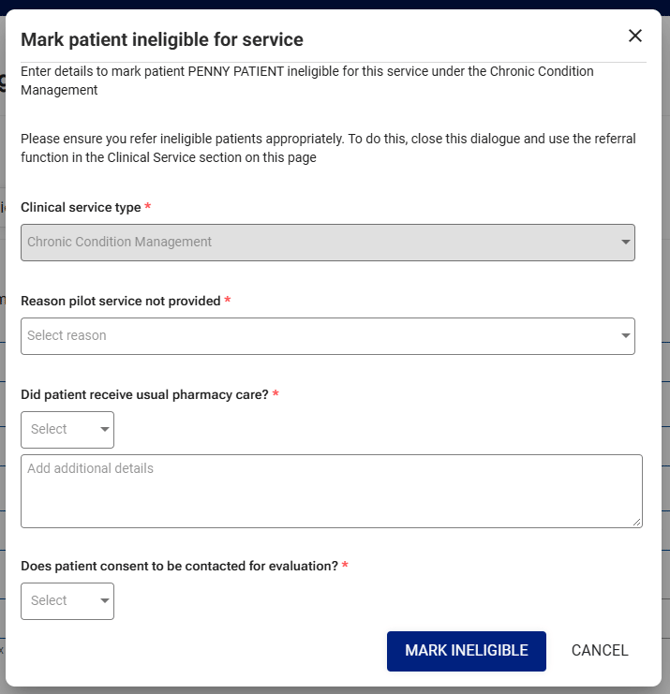
- Select from the Reason pilot service not provided drop-down list
- Answer the question Did patient receive usual pharmacy care? and add additional details below
- Specify if the patient consents to be contacted for evaluation from the drop-down
- Select MARK INELIGIBLE or CANCEL to undo this action
Patient information
- Review and update the Patient information section, making sure to fill out all compulsory fields
Please note: We recommend to update patient information in your dispense system.
Consulting pharmacist details
- Under Consulting pharmacist details, today's date is pre-populated but this can be changed by selecting the calendar icon.

- Select from the Pharmacist drop-down list.
If you do not see your details in the Pharmacist drop-down list. Select the + icon, enter all compulsory fields including Pharmacist details, Immuniser details and Prescribing and secure messaging details. Consent to Hola account (for prescribing) and select Add pharmacist
Consent and reason for consultation
Select Clinical & financial and/or Pilot evaluation to view the 'Informed Clinical Consent' and Pilot information sheet.
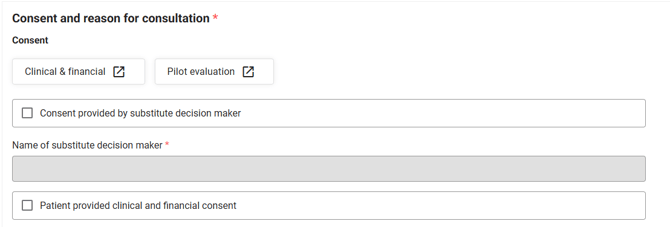
The patient is asked to provide consent when making their booking online and you can see this under 'Consent'.
If the patient has not booked online, you must ask the patient for their clinical, financial and evaluation consent and select the corresponding tick boxes. All consents must be provided to proceed.
- If consent is provided by a substitute decision maker e.g a carer, select the check box and enter the name of the substitute decision maker.
- The patient must provide re-consent during the consultation, if the patient or pharmacy booked an appointment. Answer the compulsory question, For patient bookings or if the pharmacy made the booking, select "Yes, patient still consents" to reconfirm consent by selecting the drop down. The patient may remove consent at anytime.
Please note: This selection will not appear for services launched with you pre-booked appointment.
- You will also see the patients' answers made while booking to the below questions. This section can be updated.
Clinical service
- Under the Clinical service heading, select if the service is new or a follow up
- Under Presenting symptom (up to four), start typing the symptom and select from the list.
- In the text box under Subjective assessment, type the details of presenting symptom or complaint
- In the text box under Objective assessment, type the details of the physical examination and/or other objective assessments
Measures
In the Chronic Condition Management form, the Measures section automatically displays the following fields:
- Observations
- Respiratory function
- Lipid profile
- Glycaemic control
- Renal measures
Record relevant measures for the consultation e.g Weight, BMI, blood pressure and much more.
Pathology
- Select 'Yes' where applicable to answer Does the patient require a Pathology request? Leave blank if the patient does NOT require a pathology request.
- If Yes, select required tests from the pathology list
- Where applicable, select Pathology report received tickbox
For more information on Pathology including third-party pathology providers, please CLICK HERE
- Enter Diagnosis and Treatment and plan
- Upload any supporting files and images by selecting the Upload files button to attach files or images from your desktop computer.
Prescribing
Click here to access the knowledge article on Prescribing (powered by Hola Health)
- After the prescribing step, select Treatment goal(s)
- Enter Scheduled review information, select a review date and add any notes when required. Also select if a Follow up is recommended
Notifications and referrals
For secure communications, click the following link:
Click here to access the knowledge article on secure messaging (powered by FOXO)
Please note: DO NOT go to Foxo directly to create an account. Your account will be created as part of the MedAdvisor onboarding process.
Consulting outcome
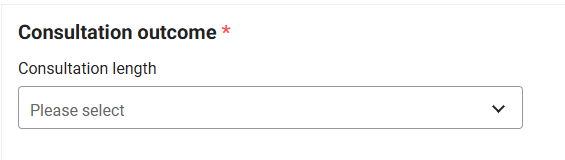
- Select Consultation length
- Select Clinical Service Type from the check box list proved.
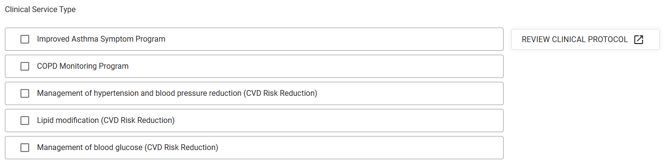
Please note: Select Review Clinical Protocol to launch a pop-up to the protocols
- Select from the list in Consultation summary (You may select more than one)
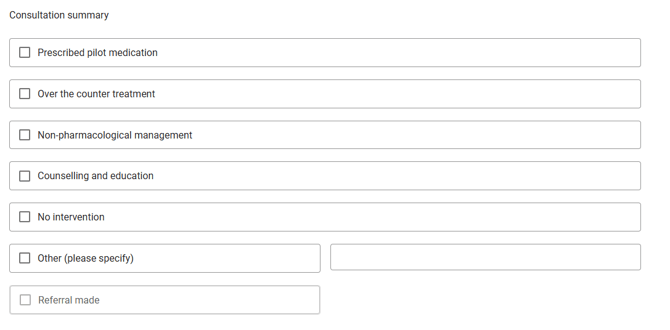
- If a referral was made via PDF or secure message, Referral Made will be automatically selected and you must select the reason/s for referral
At the bottom (and the top) of the form, you can Save a draft at any time. You can also Delete the form or Complete the Pharmacist Consultation form, as long as you have completed all compulsory fields.
