
To set up your digital signature, please follow these steps:
- In the menu of Medadvisor for Pharmacy, select Patients

- Select Service Settings
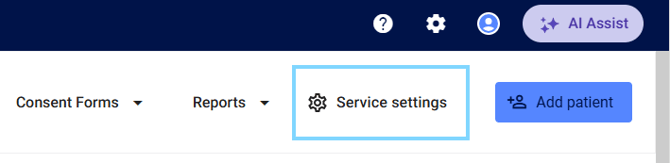
-
Select Manage Pharmacists and select Edit next the pharmacist profile

- The Edit pharmacist pop-up will appear. Under Pharmacist details, select Digital signature

- You have the option Draw OR Type OR upload an Image of your signature. Select your preference from the top
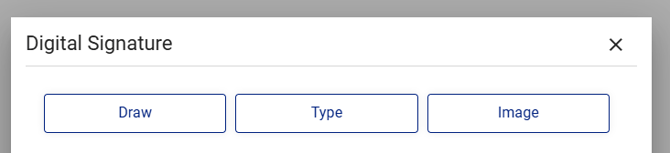
DRAW
When draw is selected, hover your mouse cursor over the blank section and draw your signature by clicking and holding the left mouse button and manually drawing your signature.
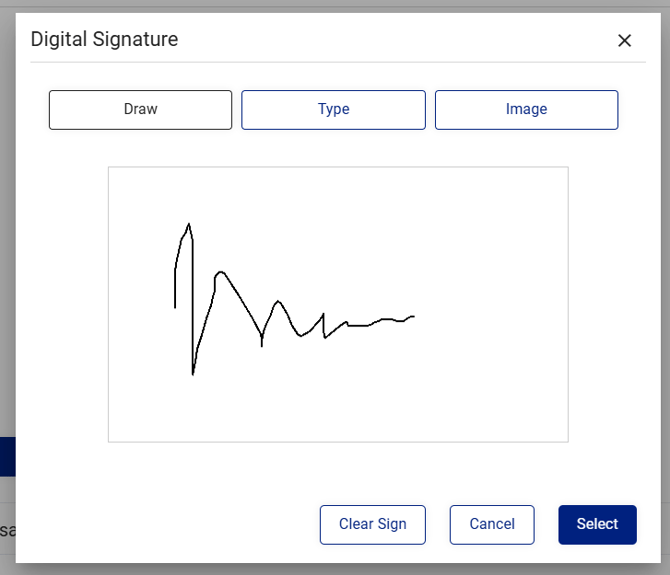
TYPE
When type is selected, type your signature and choose your font
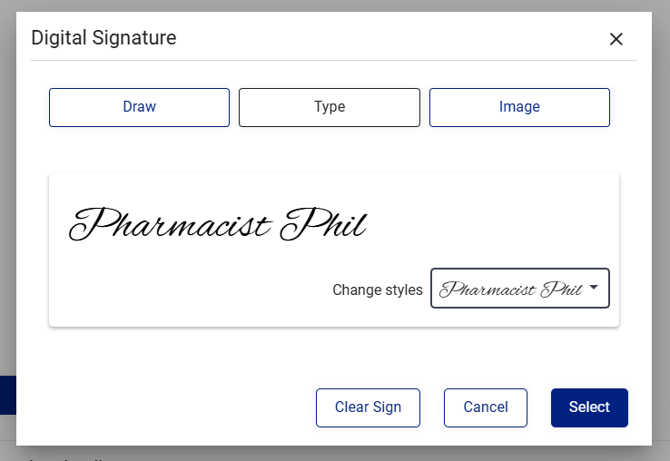
IMAGE
When image is selected, drag and drop your file OR click to browse and upload the image from your computer
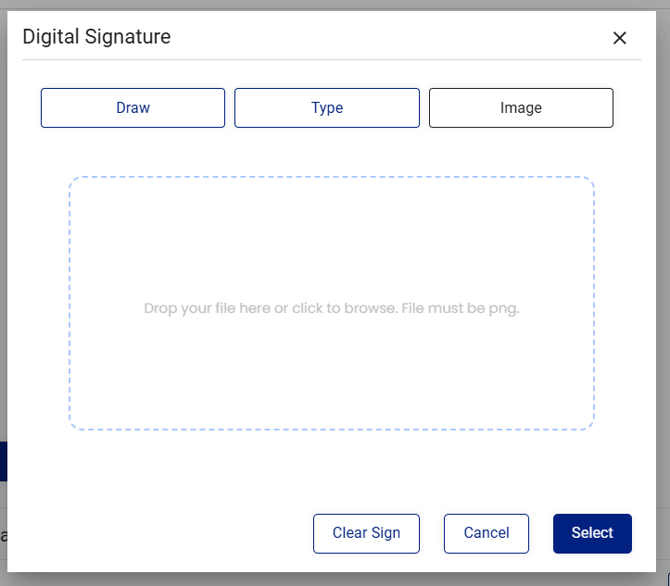
Please note: Image files must be a .PNG file and file size is limited to 1MB.
- Select Clear Sign to remove your signature and start again (as required)

- Once you a happy with your signature, click Select to save your signature.
Please note: This can be changed in the future by repeating the above steps.
- Your signature will be visible in the Edit pharmacist section. To save your digital signature, select Update details

The digital signature will appear on all Certificate for Leave PDF's that are generated using your profile.