

You may filter by All, Bookings, Information, Messages and Orders in the Show section. You can also Search, Print and Manage Deliveries.

There are four (4) types of messages you can expect to see in the Inbox of MedAdvisor for Pharmacy software: Select one or multiple filters to update your inbox view.

1. MedAdvisor Information
MedAdvisor will alert you via the Inbox when there is important information. These alerts will be colour coded green, amber or red depending on the urgency of the message and will contain a link to additional information by selecting View.

2. App Orders & Messages

Anytime an app patient orders, you will receive the order in your Inbox. You will see the patients name, the items ordered and if pay in advance or delivery has been requested. Select View to process the order and customise the response OR select the Ready to Collect icon for fast processing.
You will also see if an app patient sends a message.

3. SMS Orders & Messages

Anytime a SMS reminder patient orders, you will receive the order in your Inbox. You will see the patients name, the items ordered, and the message attached e.g the patient texting YES to dispense. Select View to process the order or click the Quick Action - Ready to Collect.

4. Booking Requests & Confirmations
Booking Requests
Anytime a patient requests a service, you will receive the request in your Inbox with the call-to-action to contact the patient. The message will include the service requested and their contact details e.g mobile number or email address.

Booking Confirmations
When you have set your availability for services, you will receive booking confirmations in your Inbox. The confirmation will show the patients name, the service booked as well as the date and time of the booking.

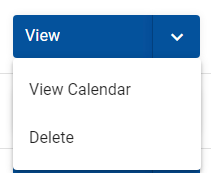
Click View to open the task and select View Calendar to view the booking on your Calendar.
Check your Inbox regularly and you will also receive pop-ups letting you know when a new item has appeared.