
Please follow these steps:
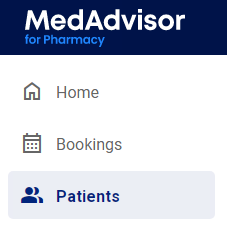
- Select Patients in the menu
- Search for the patient by surname, first name, address, medicare number or date of birth OR select from the Recently dispensed customers list OR select Add patient to manually enter the patients details
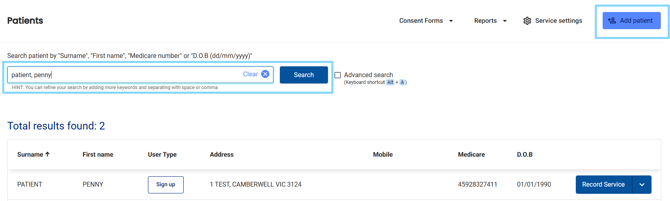
- Next to the patient's details, select Record Service

-
View the Patient Information, including any patients notes, recent services, medication list and more. Select the Services drop-down and select Interprofessional Collaboration

- Under Patient Information, review and update any information
- Under Consulting pharmacist details, today's date is pre-populated but can be changed. Select your profile from the Pharmacist drop-down

-
Under Health practitioner details (referred to) the Patient's prescriber is preset to Usual prescribers and will pre-populate the patients Health practitioner from dispense (if any are found). Select Other to change to a different provider
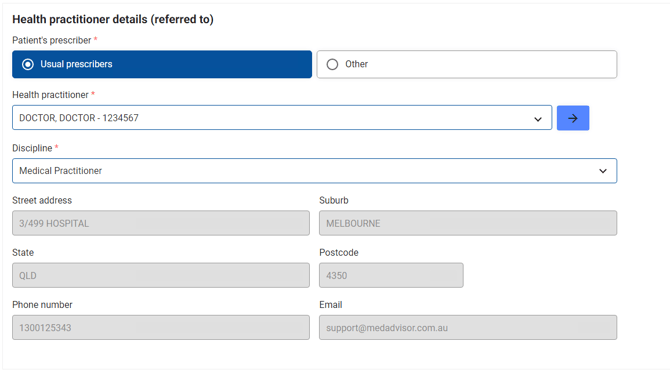
- Select the -> arrow icon to view the selected Health Practitioner details

- If Other is selected, select the + icon to add a health professional
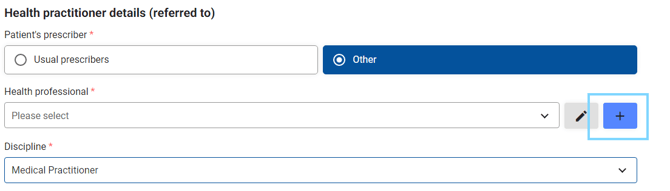
- Enter the new health professionals details including all compulsory fields and select Add
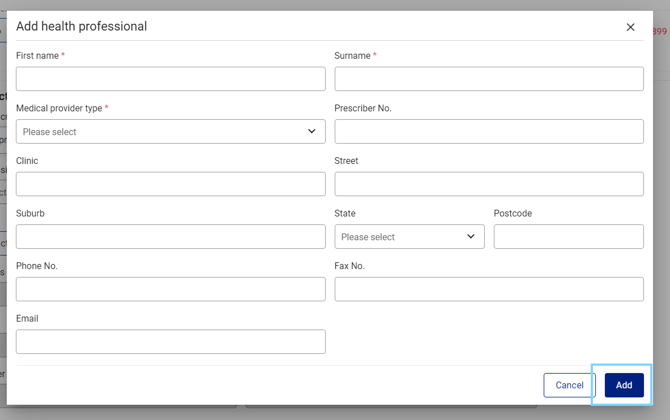
- Select Drugs involved from the Drug list and/or add Other drugs involved in this intervention

- Select the applicable check boxes under HMR details

- Under Referral, select the Communication method either written or verbal
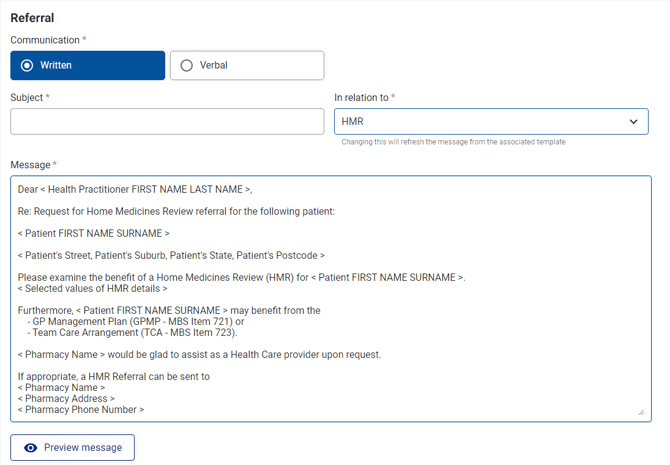
- Enter the Subject and select the In relation to drop-down, to select from the options incl. other
- The Message section will appear with a prepopulated template based on the above selection. Edit the template as required
Please note: The Message section will display 'shortcodes' that will be populated with the health professional and patient's names, for example. These can be manually edited.
- Select Preview message to see the full message with shortcodes populated.
- Select Complete

-
Scroll to the top of the form and select PDF Referral
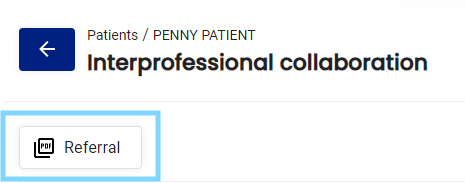
- This will launch the PDF Interprofessinal Collaboration / Referral form which can be downloaded and printed, as required.
- The record will appear in the patient's RECENT SERVICES and can be viewed and re-downloaded if necessary.