
IMPORTANT: Patients must obtain an ASL Activation Code from your pharmacy and consent via email or sms to link your account to your favourite pharmacy.
Once you have an ASL activation code, please follow these steps:
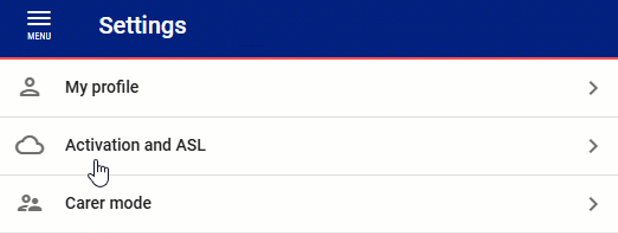
- Select Menu, Settings and choose Activation and ASL
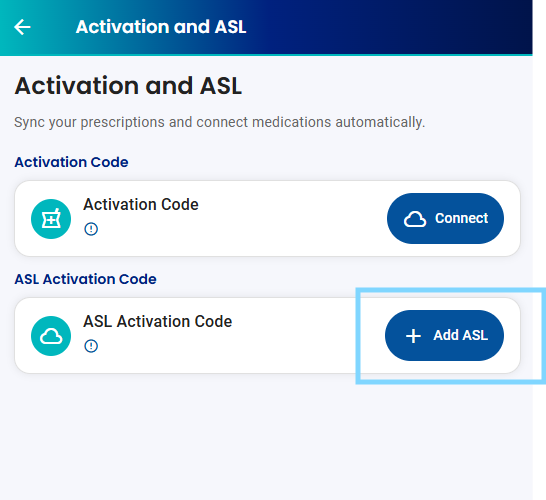
- Under the heading ASL Activation Code, select +Add ASL
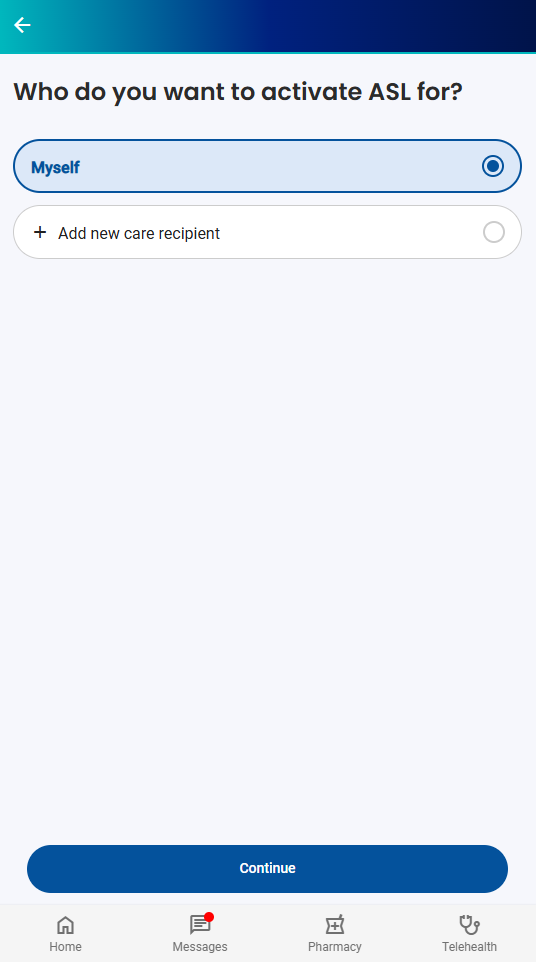
- Select who you are activating and select Continue
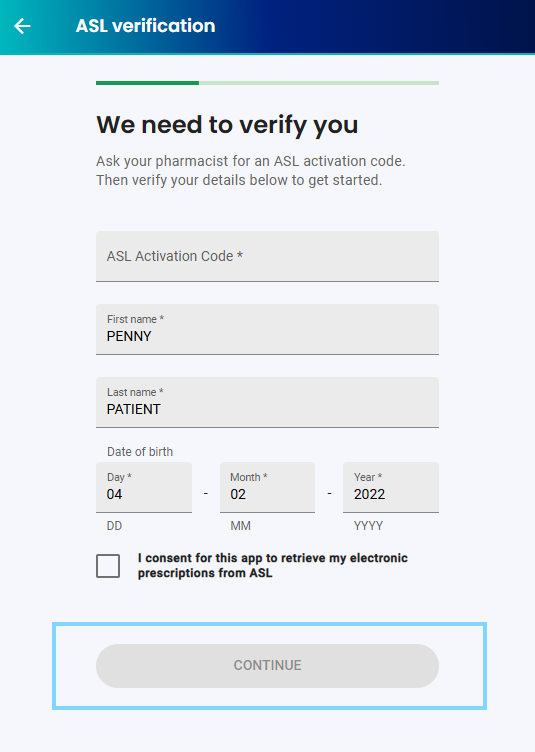
- Enter your ASL Activation Code, First name, Last Name and Date of birth and select Continue
- The app will connect to your Active Script List and show you when your Active Script List has been connected successfully
Please note: Verification details must match to successfully connect. Select Try again to update the details if the ASL connection failed.
- All active synced electronic prescriptions will show in the app with eScript Active on ASL under the Prescription Medication information and can be ordered from your favourite pharmacy