Please note: From 1st October 2026, Covid-19 vaccinations must be recorded using the Immunisation form instead of the Covid-19 Vaccination form. Covid pre-screening questions
Please follow these steps:
-
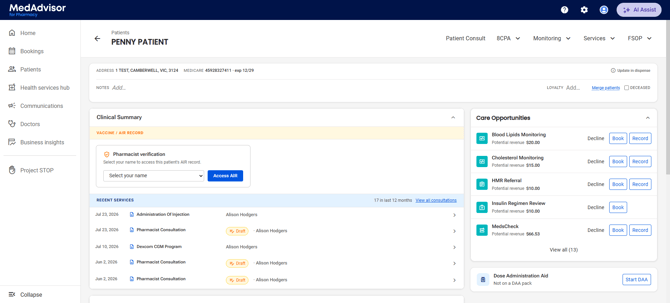
In the menu, select Patients

- Search for a patient or select from the recently dispensed list. Select Record Service

- View the Patient information (update in dispense) and check their consultation history and eligible services
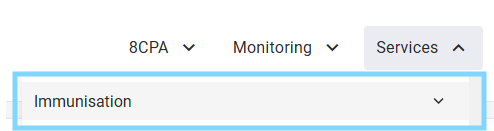
- Select Immunisation from the Service drop-down
- Select Screening/ consent form PDF to view and print
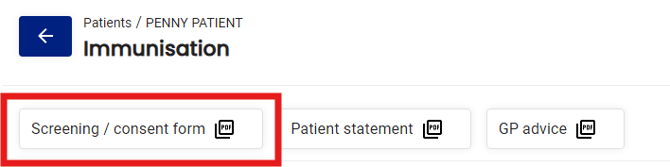
Please note: A pharmacist must be selected for the Pre-Immunisation Screening and Consent form to load.
- Under Patient information make sure all compulsory fields are entered
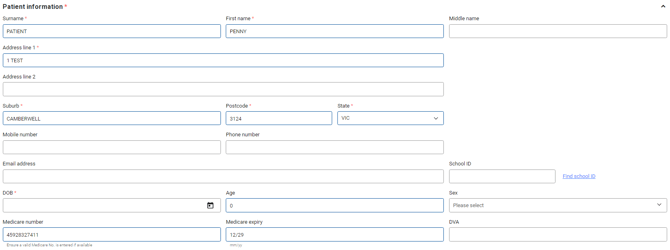
- Today's date is pre-populated and can be changed. Select your profile from the Pharmacist/Immuniser drop down

Please note: If you are not in the list, select the + icon to add your details.
- View the patient vaccination details
Please note: The pharmacist/immuniser field must be filled to view the patient vaccination details. You must include the HPII and HPIO credentials to the pharmacist / authorised immuniser.
Participating health professionals may utilise the services and information provided, including personal information only in accordance with National (Privacy Act 1988. Health Insurance Act 1973, Australia Immunisation Register Act 2015 and other relevant legislation), State or Territory legislation, Policy and Guidelines.
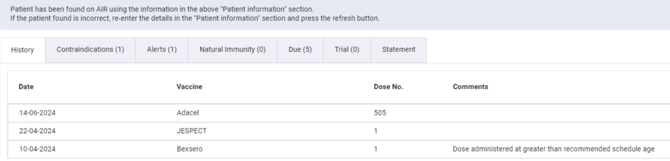
- Complete the pre-vaccination screening checklist including pharmacist notes (optional)

- Complete the Subsidised immunisation checklist (where applicable)
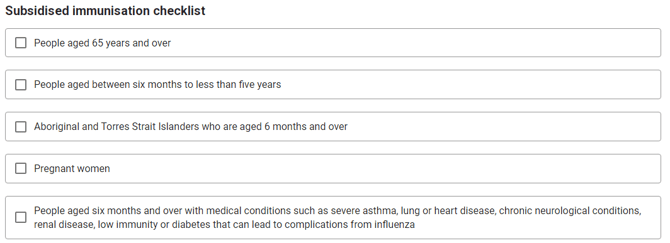
Please note: If 'Pregnant women' is selected Antenatal will be recorded to AIR.
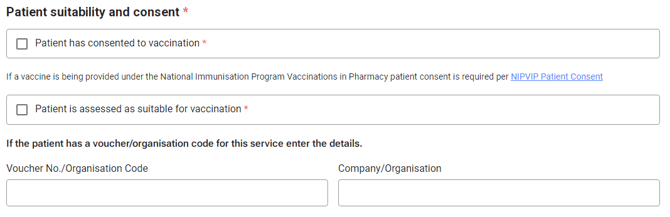
- Select the tick boxes when the patient has consented to the vaccination and assessed as suitable for vaccination
- Enter Vaccination details (including all compulsory fields)
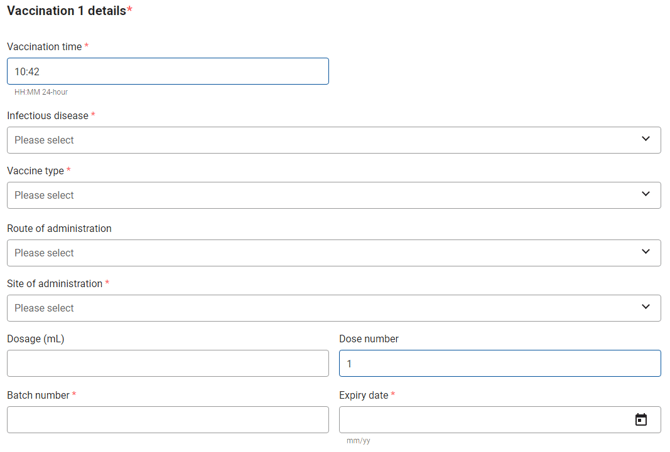
- Select Vaccine Funding Type

- Answer the question Is the patient pregnant, add comments, ideal next dose date and CMI provided
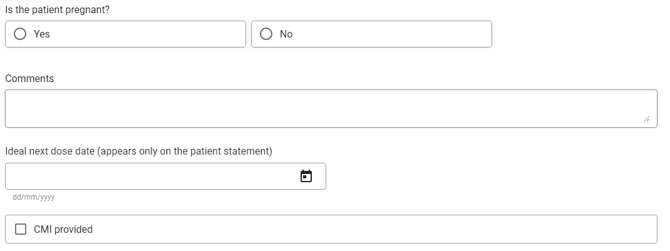
Please note: Antenatal question is mandatory for females aged between 10 and 65. The form will prompt you accordingly.
- The form allows you to record up to five (5) vaccinations. Select + Add another vaccination
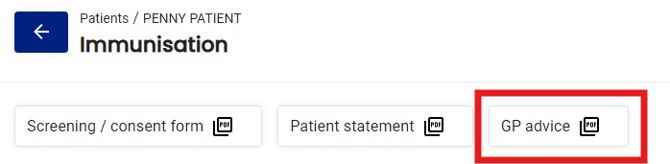
- At the top of the form, once completed, you can generate a GP advice PDF. The Usual prescriber will be selected. Select Other to add another prescriber's details.
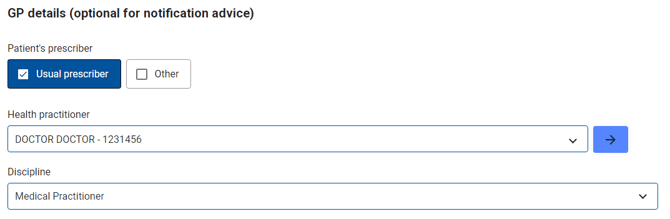
- Select GP Advice at the top of the form when completed to generate the PDF.
- Select Complete

When the form is completed, the record will be automatically submitted to AIR. AIR will validate the data and confirmation of success will be displayed.
As long as all compulsory fields are recorded, the document will be saved under the patients' consultation history.
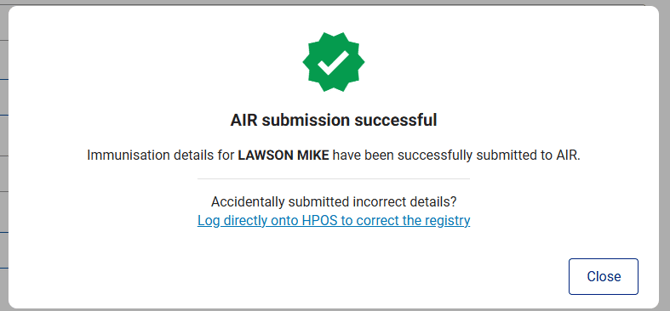
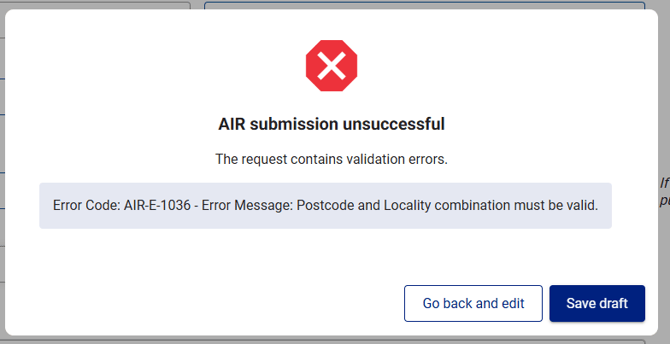
If an issue is found, a warning or error message will be displayed. These pop-ups will contain instruction on what the issue is. Select Go back and edit to make the required changes.
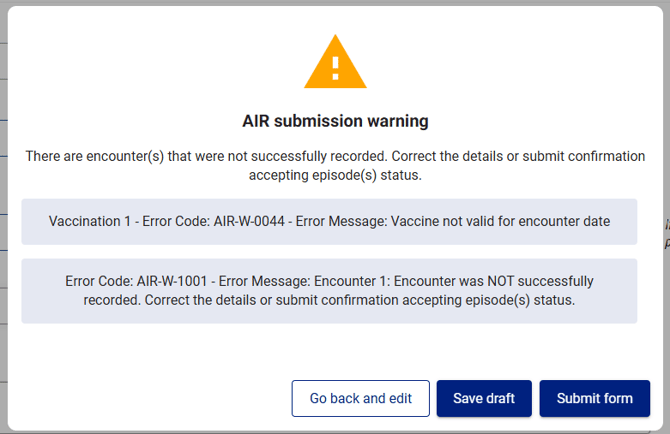
Please note: Warnings - if the data is confirmed as correct, click Submit form