
This article includes:
- Settings and set up
- How to send patients a pre-screening link via sms
- How to show patients a QR code directing them to the pre-screening link
Settings and set up
Please follow these steps:
- Select Bookings in the menu
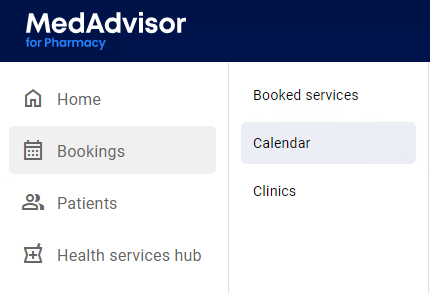
- Select Calendar and choose Get public link

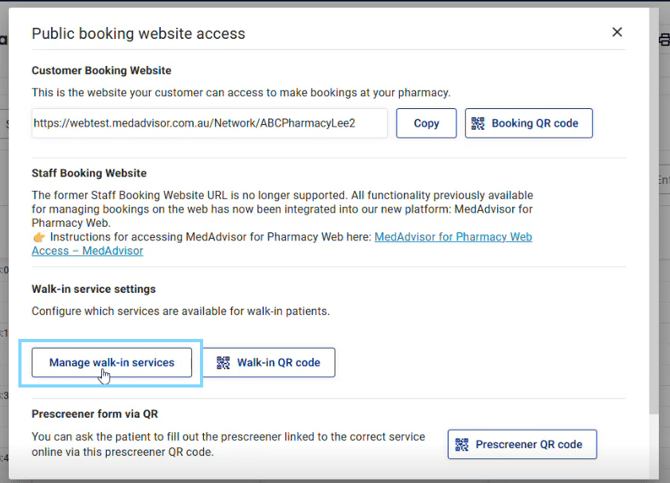
- Under Walk-in service settings, select Manage walk-in services
- Select the Walk-in enabled check box next to the service booking type/s that you would like walk-in patients to fill out pre-screening checklists for e.g Flu Vaccination and select Save
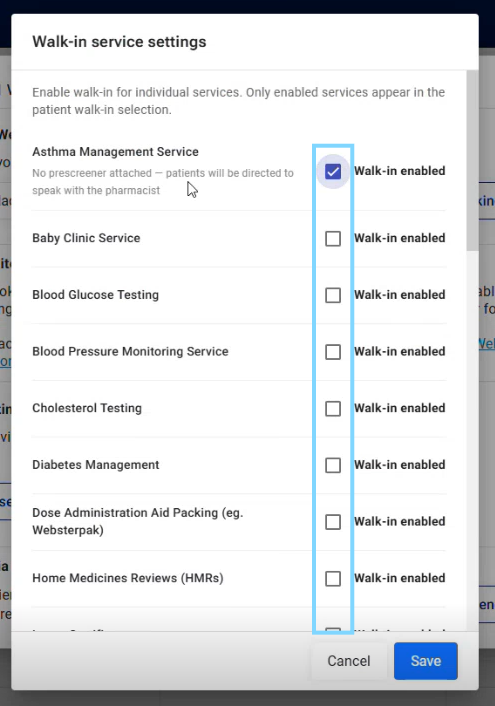
Please note: If a service booking type does not have a pre-screener as part of the service recording form, the link will direct patients to speak to a pharmacist. We recommend to select services that have a pre-screening checklist attached e.g Flu Vaccinations
Display walk-in QR code
To print your walk-in QR code for all walk-in patients, please follow these steps:
- Select Bookings in the menu and choose Calendar
- Select Get public link

- Select Walk-in QR code
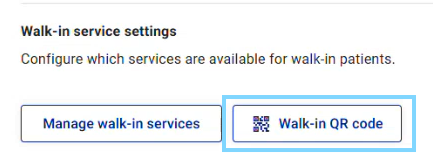
- Your walk-in QR code will be shown. Select Print QR to print
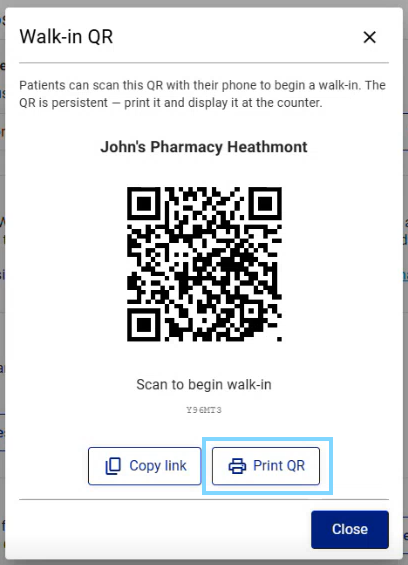
Please note: We recommend to print, laminate and display this code in pharmacy where patients present for bookings e.g Dispensary and Front of shop / Point of Sale area.
How to send walk-in patients a pre-screening link via SMS
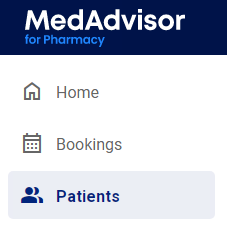
- Select Patients in the menu
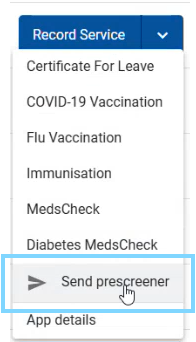
- Search for the patient and the click the drop down arrow and select Send prescreener
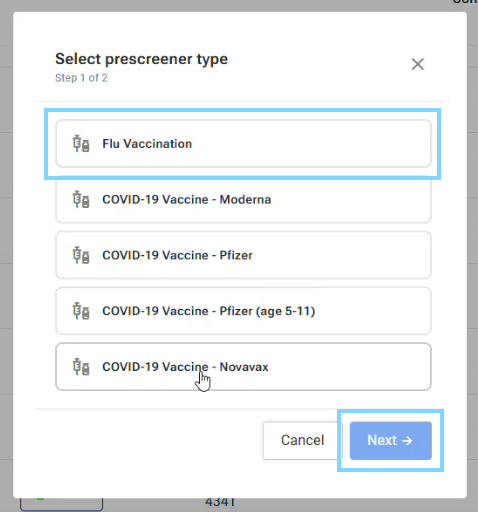
- A pop-up will appear where you can select which prescreener type to send e.g Flu Vaccination. Select the appropriate service and click Next
- Select Send via SMS ensuring the mobile number for the patient is correct.
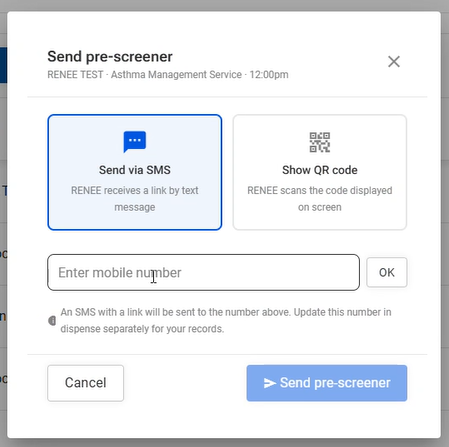
- Select Send pre-screener
The walk-in patient will receive an SMS with a secure link to click and fill out the pre-screener. When the patient clicks the link, they will confirm their details details are correct and can complete the pre-screening checklist. The checklist answer will pre-populate within the form when launched from the Bookings tab.
Please note: The patient details are pre-filled out. The forms will be valid for the patient for 30 minutes after sending.
How to show patients a QR code directing them to the pre-screening link
- Select Patients in the menu
- Search for the patient and select the down arrow and select Send prescreener
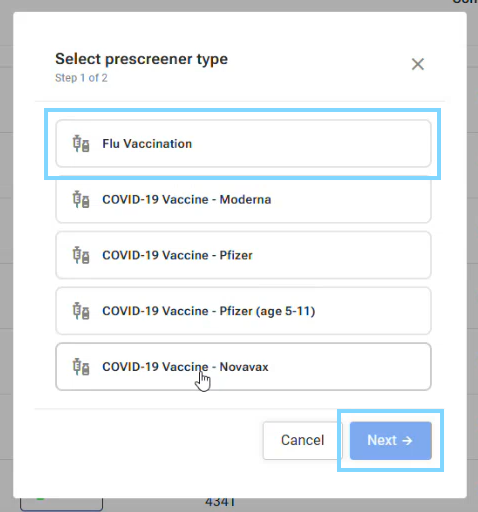
- A pop-up will appear where you can select which prescreening type to show the patient e.g Flu Vaccination. Select the appropriate service and click Next
- Select Show QR code and advise the patient to scan the code with their phone
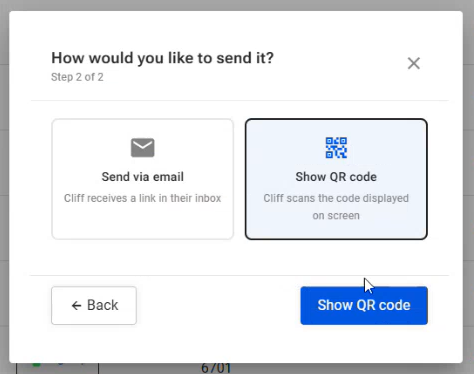
The patient will complete the pre-screening checklist and when you launch the service form, the answers will be pre-populated.