
he notifications and referrals feature is available via:
- Administration of Injection
- Patient Consult module
- FSOP (Full Scope of Practice) forms
Please note: DO NOT go to Foxo directly to create an account. Your account will be created as part of the Medadvisor onboarding process.
More information can be found here: https://foxo.com/
Set Up Pharmacist Profile
You must set up your pharmacist profile, prior to using Notification and referrals to send secure messages.
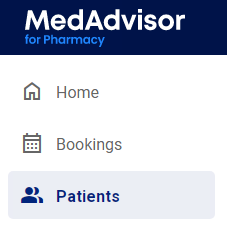
- Select Patients in the menu
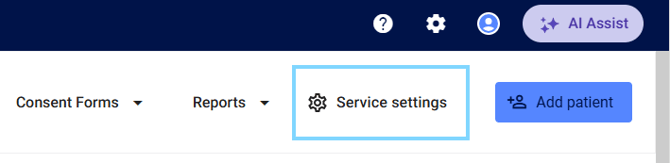
- Select Service Settings
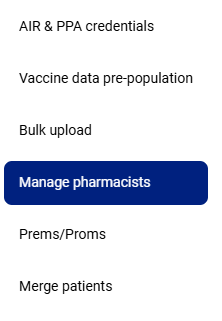
- Select Manage pharmacists in the sub-menu
- Search for your profile and select the edit icon from the Manage pharmacists list
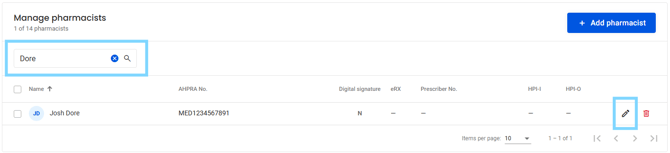
Please note: If your profile is not found, select + Add Pharmacist

- Scroll down to enter your work email address. Emails MUST NOT be a shared email address

- Select Update details
Your profile is now ready to send secure messages in the Notifications and Referrals section of selected service forms.
There are two types of communications - notifications and referrals.
- A notification is a message with information regarding the consultation, that is sent to the patient’s regular GP after the patient has consented for that information to be shared.
- A referral is a message which is sent when (because of the pharmacy consultation) the patient needs to be referred to a health practitioner after the patient has consented for that referral to be sent.
To send secure messages, please follow these steps:
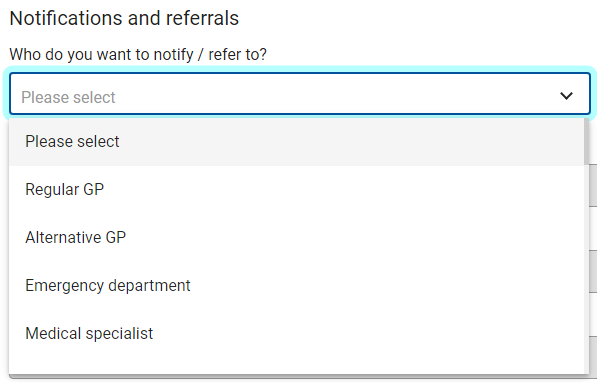
- In the forms Notifications and referrals section, select the drop down under Who do you want to notify / refer to?
- Select the type of communication
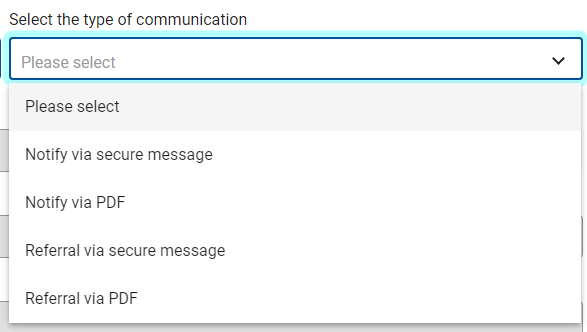
If you choose Notify via secure message or Referral via secure message, you will need to make sure you have a valid email address in your pharmacist settings (see above).
- Select Find a health practitioner to search

- The Search contacts pop-up will appear. Enter name, search by discipline, clinic, suburb or state and click Search to locate a health practitioner in the Suggested section.
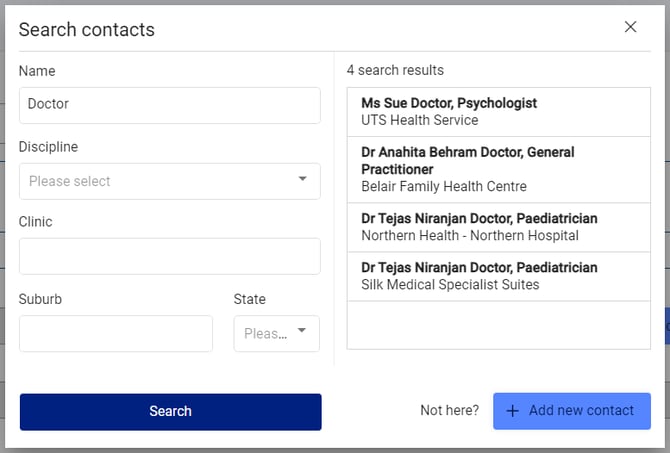
- Select the Health Practitioner you would like to securely message from the list OR select Add new contact if you cannot find them in the search results.
- The template for Subject and Body of the notification will pre-populate. You can edit these fields as required.
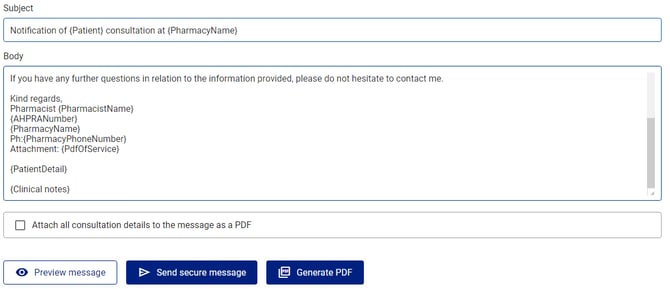
-
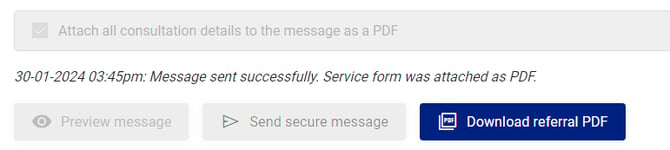
Select Preview message to view the message with all fields (e.g Patient info) visible.
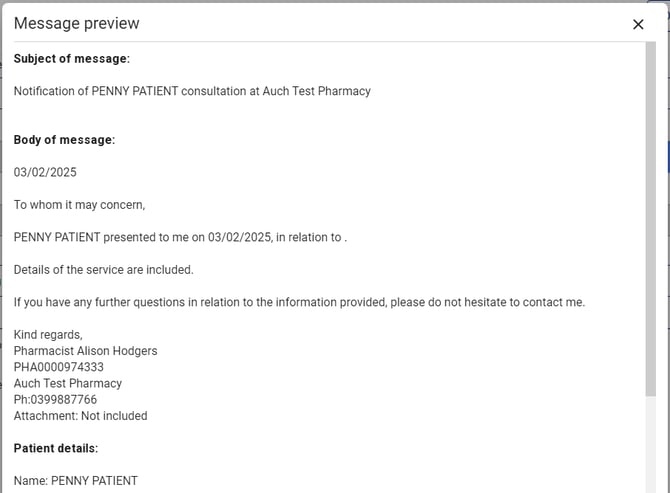
- To include all consultation details select Attach all consultation details to the message as a PDF

- After reviewing / editing the message, select Send secure message
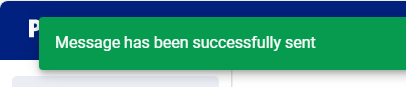
- A green bar will appear, letting you know the message was sent successfully.
Please note: Both the pharmacist and the health practitioner will be alerted via email from FOXO anytime a new message or reply is sent.
- Repeat the above steps by selecting + Add another communication to message another health practitioner, as required.
The Health Practitioner will be sent an email each time you send a notification or referral letting them know they have a secure message in their FOXO portal. They will be reminded via email if they do not respond or login to view the message. You will also receive a notification any time the health practitioner responds.
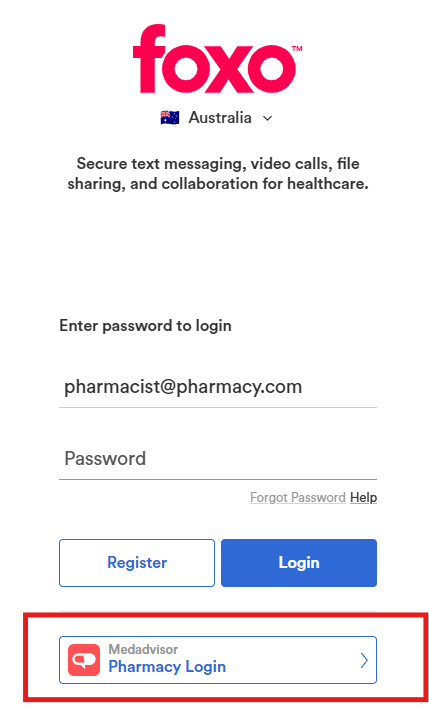
Please note: DO NOT go to Foxo directly to create an account. Your account will be created as part of the MedAdvisor onboarding process and you can login to FOXO by clicking MedAdvisor Pharmacy Login