
Please note: To access Prescribing powered by Hola you must access the web version of Medadvisor for Pharmacy.
For more on prescribing CLICK HERE
For more on Notifications and Referrals CLICK HERE
Please follow these steps:
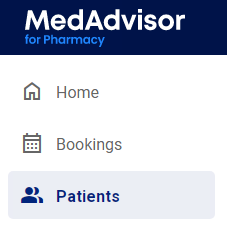
- In the menu, select Patients
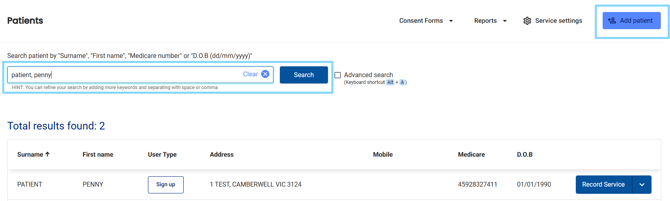
- Search for the patient, select from the recently dispensed customers list or select + Add Patient
- Select Record Service
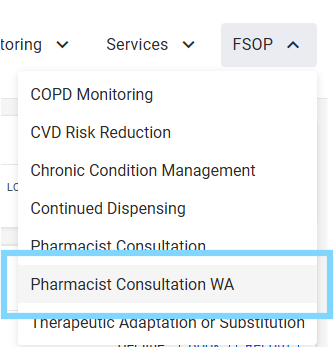
- View the patient dashboard to view clinical summary, recent services and care opportunities. Select the FSOP drop down in the top-right corner, and select Pharmacist Consultation WA
- The Consultation summary PDF is available at the top of the form and will include the consultation information once you have completed the form.
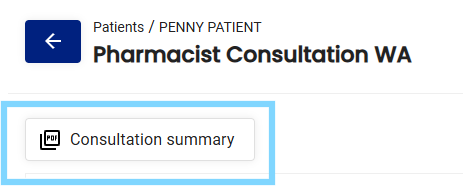
Download the summary and share with the patient after completing the form.
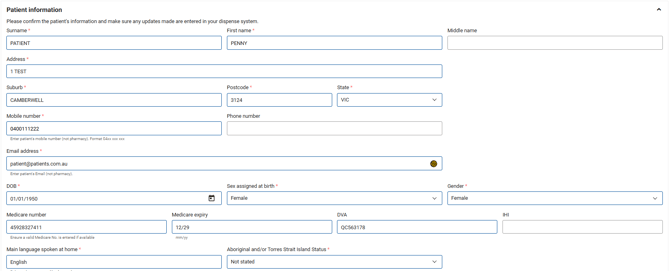
- Review and update the Patient information section, ensuring all compulsory fields are entered
- Under Consulting pharmacist details, today's date is pre-populated but can be changed. Select your profile from the Pharmacist drop-down

- Under Consent and reason for consultation, when you have requested clinical, financial and evaluation consent, select the appropriate checkboxes
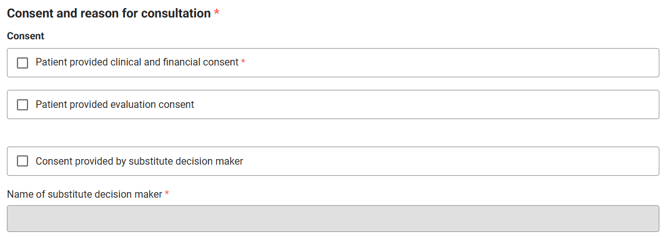
Please note: There is an option to obtain consent by a substitute decision maker e.g a carer
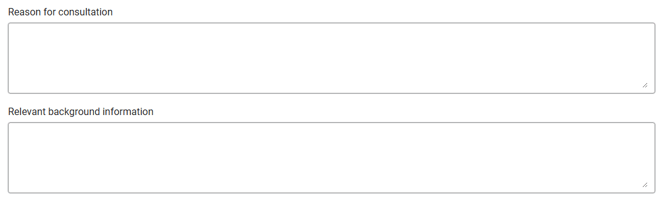
- Enter Reason for consultation and Relevant background information
- Complete the Medical and social history section
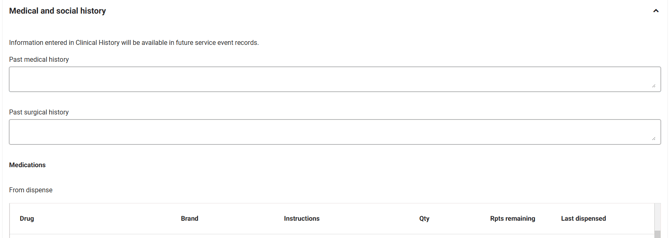
Please note: You will see the patients past 12 months of Medication history from your pharmacies dispense system
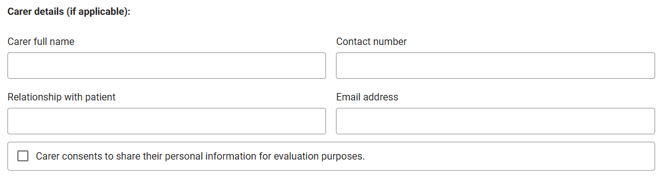
- Enter Carer details (if applicable)
- Complete the Clinical service section including symptoms and your comprehensive subjective and objective assessment
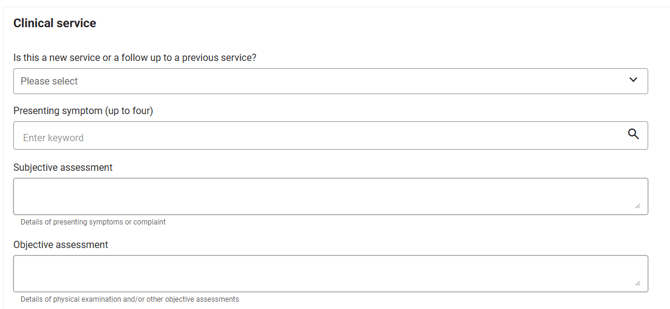
Please note: You may enter up to four presenting symptoms
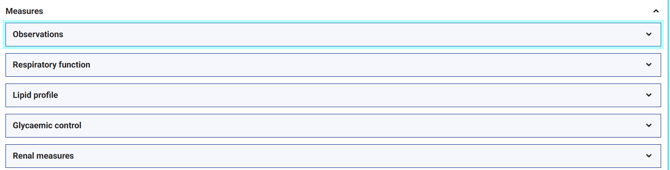
- Under Measures, where applicable, enter the Observations recorded and optionally open the Respiratory function, Lipid profile, Glycaemic control and Renal measures to enter recorded details
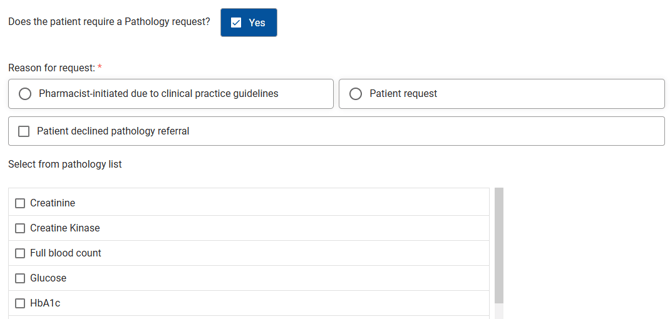
- Select the Pathology checkbox to indicate the patients requires Pathology requests and enter the reason for the request and if a pathology report is received, entering the date and provider name (as required).
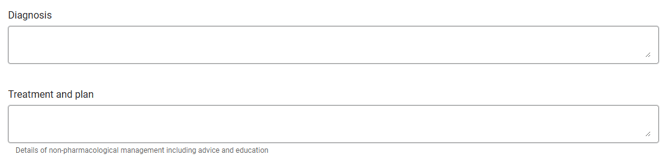
- Enter Diagnosis and Treatment and plan
Please note: You may also enter a Asthma action plan and status, if applicable
- Upload supporting files or images (up to 10 files and 50mb each)

-
If required, select Prescribe medication to launch the prescribing widget, powered by Hola

CLICK HERE for more on prescribing
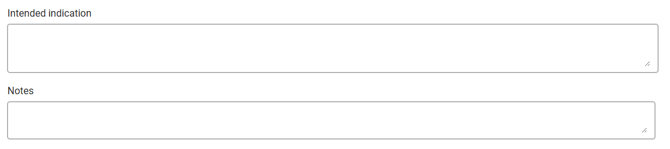
- Enter Intended indication and any notes
- Select the check box if a follow up is recommended and select the date and enter details of the follow up

- Complete the Notifications and referrals section
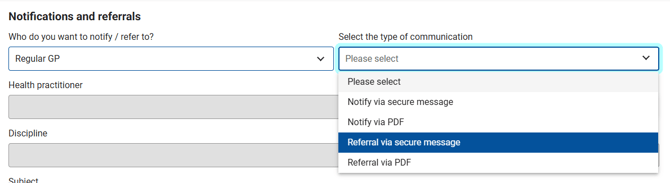
CLICK HERE For more on Notifications and referrals, powered by FOXO
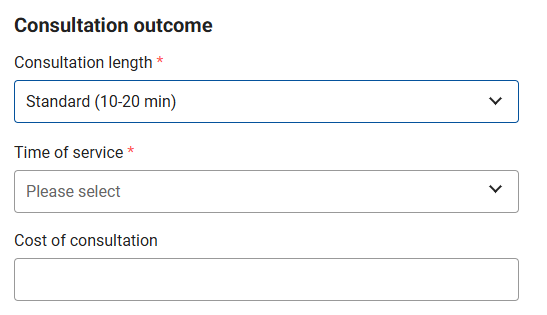
- Under Consultation outcome, enter the consultation length, time of service, cost of consultation (where applicable)
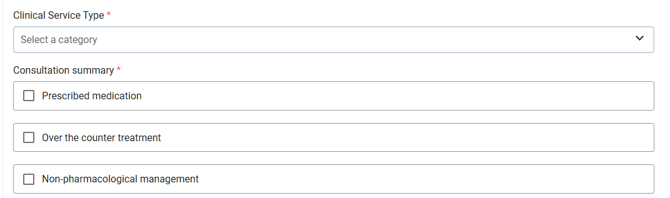
- Complete the Clinical Service Type by selecting from the drop down and selecting the Consultation and Service summary checkboxes and answers
- When all compulsory fields are completed with all supporting material and notes checked, select Complete
Please note: Select Save to save a draft
The consultation record will appear in the Patient dashboard and is also available in the Reports