To access prescribing you must log in to the web version of Medadvisor for Pharmacy. Click here for more
Please note: Pharmacists are reminded that handwritten prescriptions are not permitted. All prescriptions must be generated using the Hola Health prescribing widget to ensure compliance and enhance patient safety.
Medadvisor prescribing feature is powered by Hola Health. CLICK HERE for more
Set up & Settings
The prescribing feature is available in the following forms:
- Pharmacist Consultation
- Pharmacist Consultation WA
- Chronic Condition Management
To set up your profile, ready for prescribing. Please follow these steps:
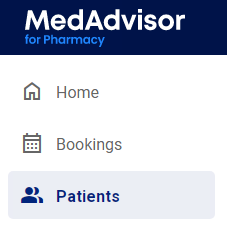
- Select Patients in the menu
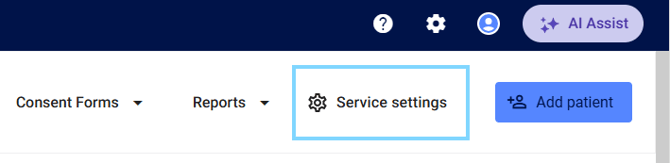
- Select Service Settings
-
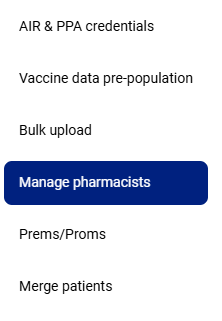
Select Manage pharmacists in the sub-menu
- Search for your profile and select the edit icon from the Manage pharmacists list
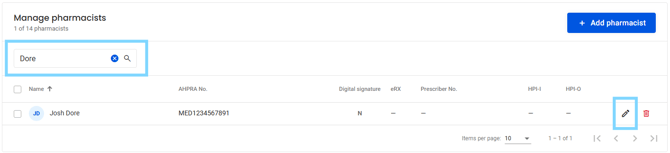
Please note: If your profile is not found, select + Add Pharmacist

- Enter all fields under Pharmacist details incl. name, initials and AHPRA number and HPII and HPIO numbers.
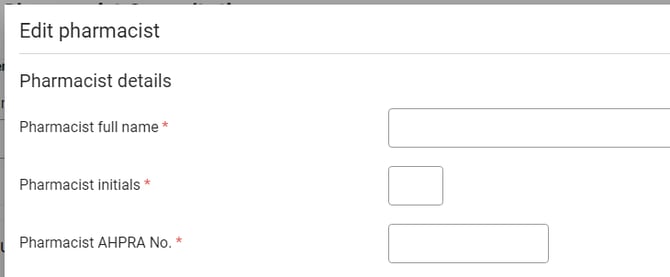
-
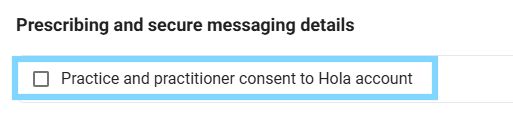
Select the consent tick box to activate your Hola account
- Enter all fields under Prescribing and secure messaging details
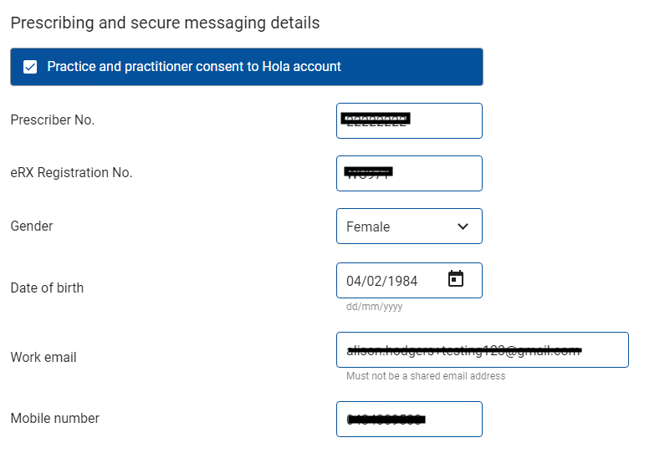
- Select Update details
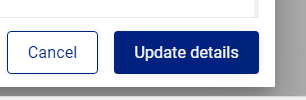
You are now set-up and ready to prescribe medication.
Prescribing
In the Clinical service section of prescribing enabled FSOP forms, you will have access to the Prescribe Medication widget (powered by Hola Health), that will show you prescribed medications and allow you to create new prescriptions in a paper or e-script format.
Follow these steps:
- Select the Prescribe medication button

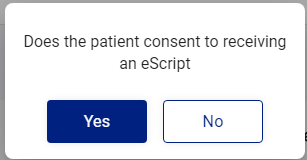
- A pop-up will appear asking Does the patient consent to receiving an eScript. Select Yes to prescribe an eScript OR select No to prescribe a paper prescription.
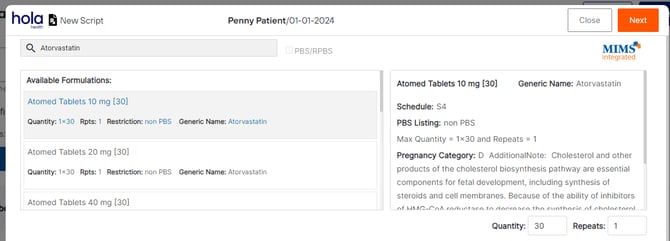
- This will launch the Hola Health prescribing widget to generate a New Script. In the top left-hand corner, enter the medication you would like to prescribe.
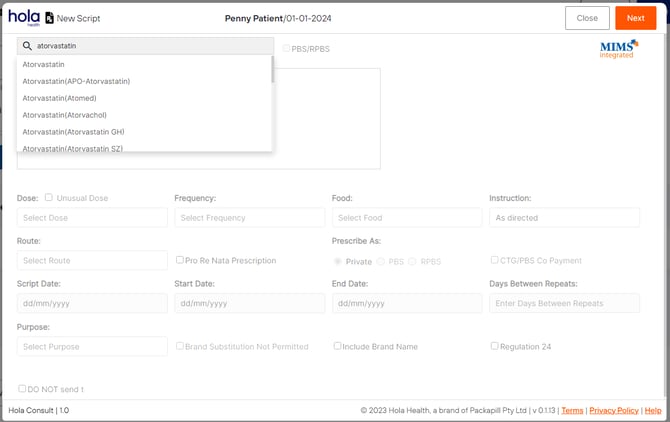
- Select the medication from the filtered drop-down
- Select from Available Formulations
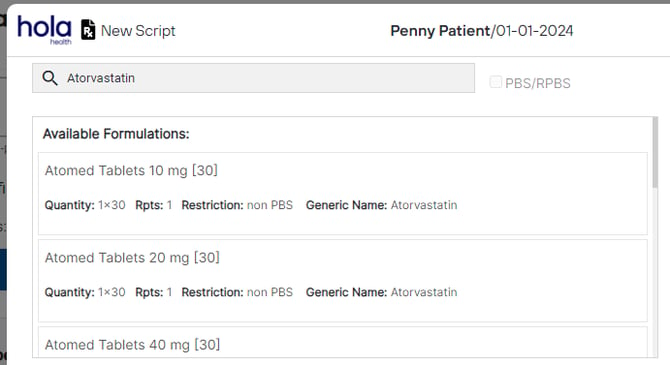
- This will populate the information in the top right-hand corner including Generic Name, Schedule, PBS listing and more. You may edit the Quantity and Repeats as required.
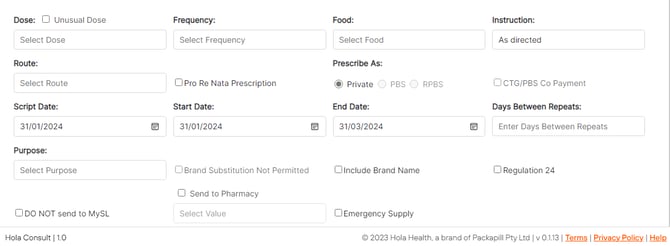
- Enter the following information including, Dose, Frequency Food, Instruction, Route, Script Date, Start and End Date, Days Between Repeats, Purpose and more.
- Select Next in the top right-hand corner
- Enter Notes to Pharmacy, Annotation, Reason for Prescriptions and Approval Number as needed
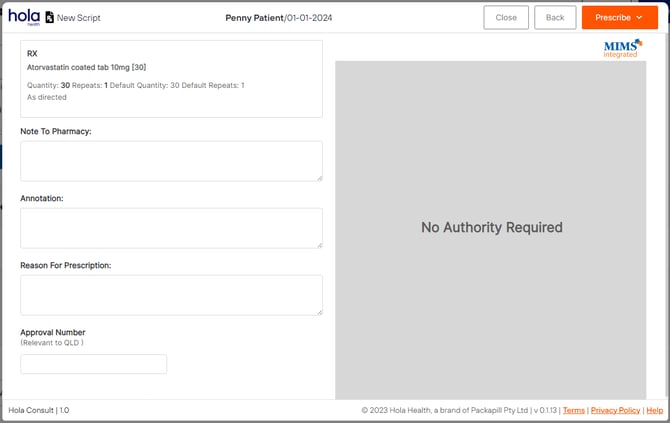
- In the top right-hand corner, select the Prescribe drop down to choose between the following options:
- E-prescribe (Draft)
- E-prescribe and Send
- Prescribe (Draft)
- Prescribe and Print
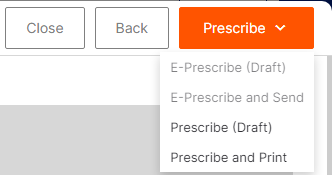
E-prescriptions will be sent to the patients mobile number and printable paper prescription can be printed in the pharmacy.
- The prescribed medication/s will now be visible in the form. Select Drug status drop-down to mark the script as New or Continuing.

- Click the pencil icon to edit/amend the prescription

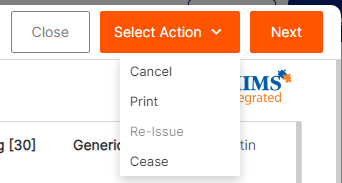
- Click the Select Action drop-down to Cancel the script, Print again, Re-issue or Cease