
Set Up Staged Supply
To set up staged supply for a customer, please follow these steps:
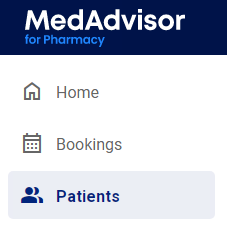
- Select Patients in the menu
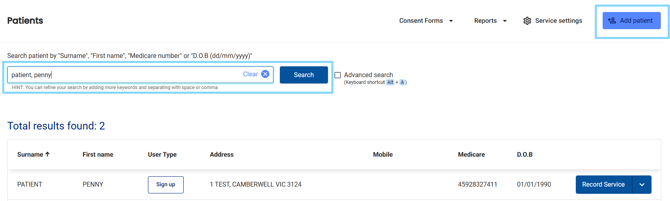
- Search for the patient by surname, first name, address, medicare number or date of birth OR select from the Recently dispensed customers list OR select Add patient to manually enter the patients details
- Next to the patient's details, select Record Service
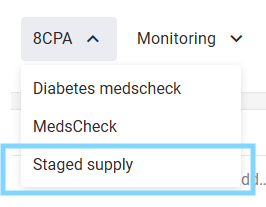
- View the Patient Information, including any patients notes, consultation history, medication list and more. Select the CPA drop-down and select Staged Supply
- Select PDF Consent form to view and download and print the Staged Supply Service - Patient Information and Consent Form. Patients can sign, date and print their name on the form as well as sign on behalf of someone they are caring for
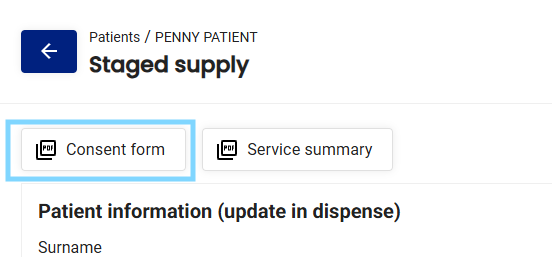
- Under Patient Information, make sure all compulsory fields are filled out e.g DOB
- Under Consulting pharmacist details, today's date is pre-populated but can be changed. Select your profile from the Pharmacist drop-down

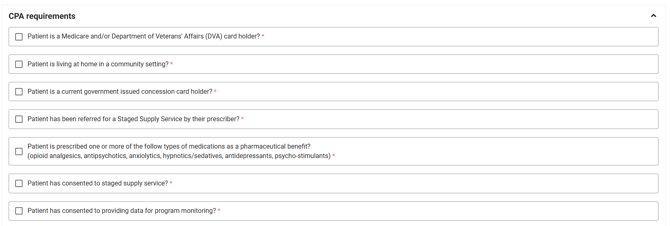
- Under CPA Requirements, select the checkboxes to make sure the patient meets the requirements.
-
Under Manage staged supply, the Supply detail tab will be open. Under Patient scripts, select the medication you would like to set up.
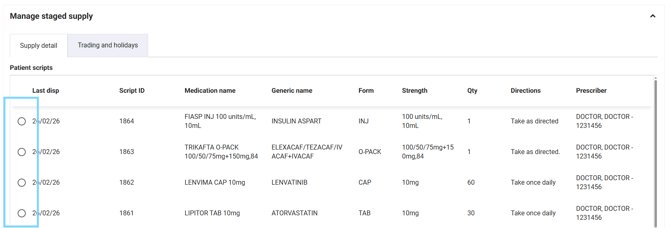
Please note: If not previously setup, you will need to select Trading and holidays to add your pharmacy trading days and any public holidays that are closed.
- Select Starting date, Starting quantity and Service fee ($) (optional)

- Select the Collection days e.g Monday and Friday

- Under Stages select +Add stage

- A pop-up will appear titled Add stage. Enter the Supply quantity, collections per day, interval and period
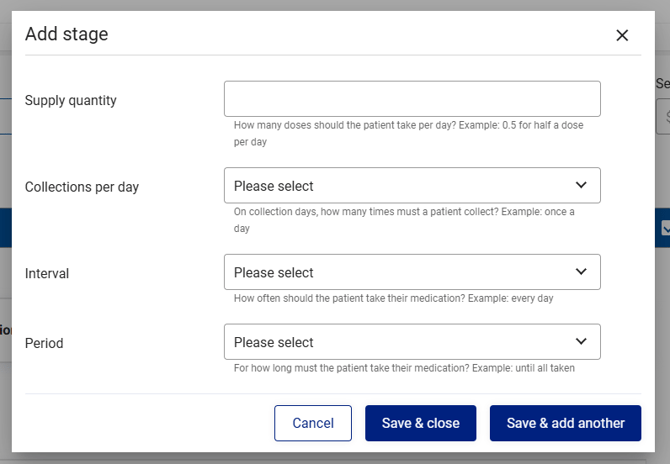
- Select Save & close
- The stage will populate in the Stages table and can be edited or deleted
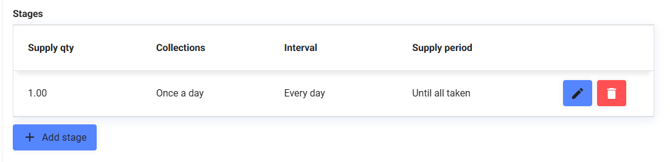
Please note: Additional stages can be added by selecting +Add stage
- The Supply schedules will auto-populate based on the previous step
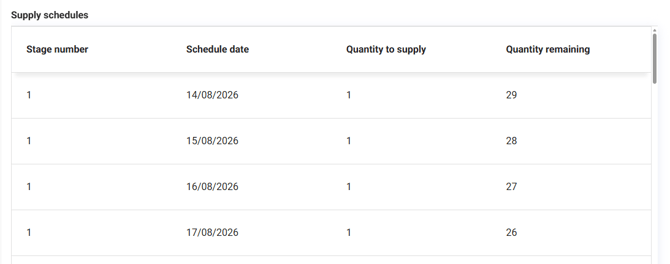
- Select Complete

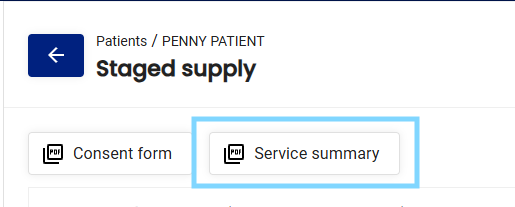
IMPORTANT: Scroll back up to the top of the form and select Service Summary to preview and print the staged supply document, including the Patient agreement and Supply schedule for pharmacist and patient initials on each collection.
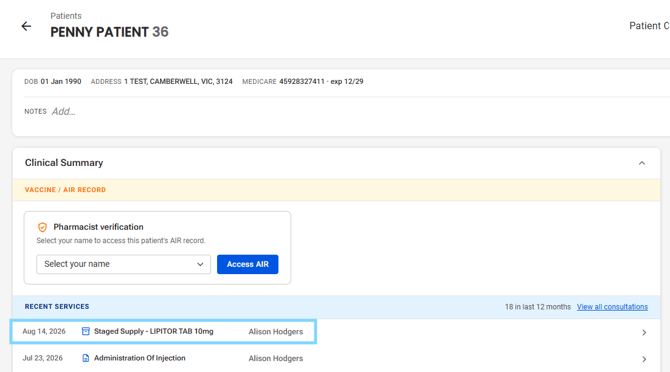
- The consultation will appear in the patients' Recent Services
Generate Staged Supply Reports
To generate Service Claim Files, Registration Claim Files and Follow Up Claim Files please follow these steps:
- Select Patients in the menu
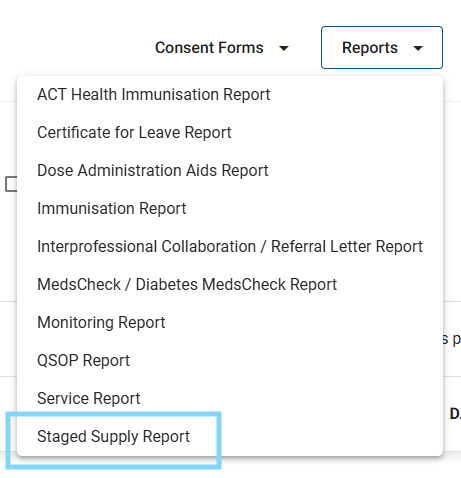
- Select Reports and choose Staged Supply Report
- This month is preselected but the date range can be changed
- You may filter the report by Document status e.g Completed, Draft, Printed and more
- Select Download in the top right-hand corner to download the claim files
- The file will download to your computer in an EXCEL format. This can be checked and uploaded to the PPA Portal for claiming.