To configure your pop-ups, you must access the installed version of MedAdvisor for Pharmacy and locate the MAIN version.
Please note: You cannot update these settings in the Desktop version of the software. Your pharmacy will have one (1) x MAIN computer only.
Please follow these steps:
- In the task bar at the bottom of your screen (near the time and date) find the Medadvisor for Pharmacy icon
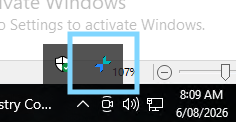
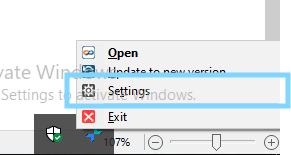
- Right click on the icon and select Settings
- The Settings pop-up will appear. Select the Notifications tab
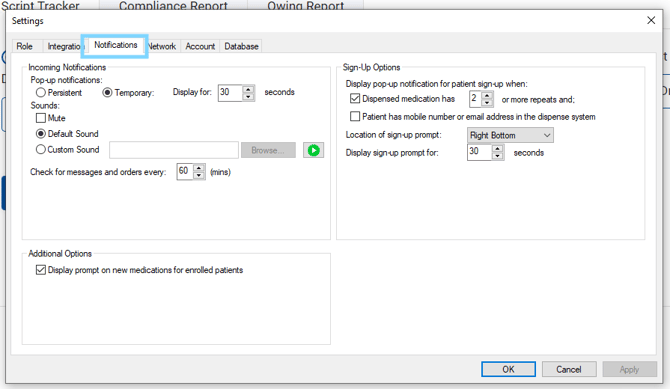
- Under Incoming Notifications, choose how long your pop-up notifications appear for e.g Temporary - 60 seconds. You can also add sounds and select how often the system checks for new messages and orders in your inbox.
- Under Sign-up Options, choose what scenarios you will receive pop-ups to prompt you to sign-up the customer to the app or SMS reminders when dispensing. Select the check box next to 'Dispense medication has' and choose how many medication repeats are required (minimum) for a pop-up to appear.
Please note: You can also choose where the pop-ups appear and for how long.
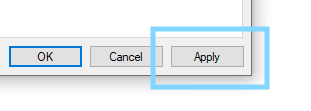
- Select Apply to save changes