
- Select the icon in the top right-hand corner of MedAdvisor for Pharmacy (web version) to access Account settings
.png?width=317&height=414&name=image%20(43).png)
Please note: Account settings are NOT available in the installed version of MedAdvisor for Pharmacy
-
In the Account settings you can access:
- Profile
- User management
- Two-factor authentication
Profile
- Update your name, username and password in this section
.png?width=670&height=386&name=image%20(44).png)
- Select Save changes
Please note: You cannot change your email address in this section. Please contact support.
User Management
This section allows admin users to add additional users to the MedAdvisor for Pharmacy web-based platform, as well as view and edit accounts that already have access.
- Select + Invite people to add pharmacy staff
- Enter the email address of the person you would like to add and select Search in the pop-up
.png?width=637&height=346&name=image%20(45).png)
This will search for an existing user on the network who may be using MedAdvisor at another pharmacy.
- If no email is matched with an existing account, you will need to create a new user by entering their First Name, Last Name, Username and select their role.
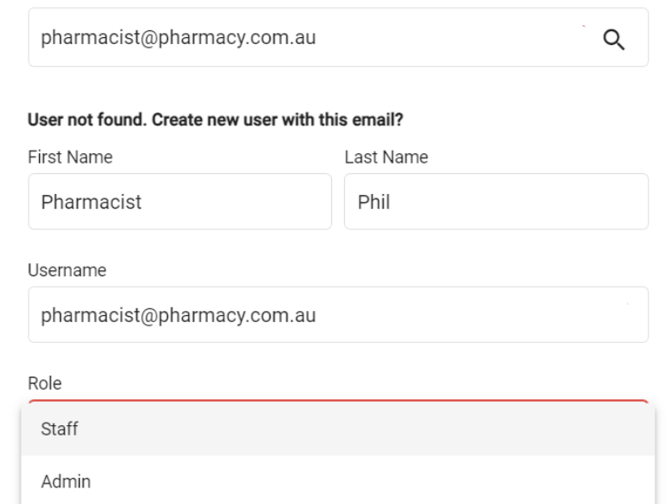
- Select the Role from the below options:
Admin (create and remove accounts)
Staff
Accountant (view subscriptions)
Please note: Admin access will allow this user to add/edit accounts. Accountant role will only see Subscription and accounts information.
- Select Send Invite
.png?width=651&height=222&name=image%20(46).png)
- The new user will receive an email, where they can verify their account, set a password and login.