
Please note: Sending SMS messages via the Communications feature attracts SMS charges for each SMS sent.
- In the menu, select Communications
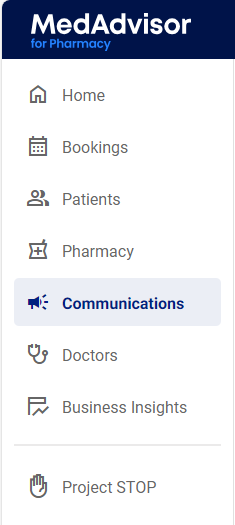
- Select the SMS messaging tab
.png?width=367&height=82&name=image%20(72).png)
- Select Create new template or select from an existing template
.png?width=667&height=158&name=image%20(73).png)
- Enter Template name
.png?width=670&height=116&name=image%20(74).png)
- In the Edit message section, enter your message and use the template codes to populate the message with personalised information e.g Patient's First Name
.png?width=670&height=492&name=image%20(75).png)
- Select Save & close
.png?width=280&height=92&name=image%20(76).png)
- Once your template is selected, you may Edit the template and Select Group that you would like to send the message to
.png?width=670&height=370&name=image%20(77).png)
- Select Send SMS
.png?width=482&height=62&name=image%20(78).png)