
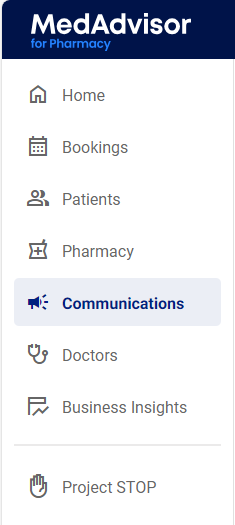
- In the menu, select Communications
- Select the App messaging tab
.png?width=338&height=66&name=image%20(79).png)
- Select the group you would like to message, if you have previously created a group. This step is optional
.png?width=641&height=118&name=image%20(80).png)
- Under Step 1 - Determine Patients, select which group you would like to message from the below options e.g All Patients
.png?width=670&height=83&name=image%20(81).png)
Please note: You can manually select patients and filter by the other options.
- Under Step 2 - Choose Template or Create New Message
.png?width=507&height=160&name=image%20(83).png)
- Enter a Title for your template e.g Flu Template
- In the Body section, type your message and use the template fields to pre-populate text including patients first name and pharmacy name
.png?width=605&height=296&name=image%20(85).png)
- Select which Notifications you would like to send with the message including email and app push notifications. This step is optional
.png?width=553&height=106&name=image%20(86).png)
- Select the checkbox to Save this message as a template to use again in future? and enter the Name of the template to use in the future.
.png?width=670&height=94&name=image%20(87).png)
- Select Submit
.png?width=107&height=65&name=image%20(88).png)
- A pop-up will appear. Select Confirm to send
.png?width=670&height=290&name=image%20(89).png)
- You will see a confirmation that your message has been sent successfully. Select OK
.png?width=670&height=254&name=image%20(90).png)
Please note: If there are a large number of customers selected, the messages can take 15-20 minutes to send completely.